Cheat
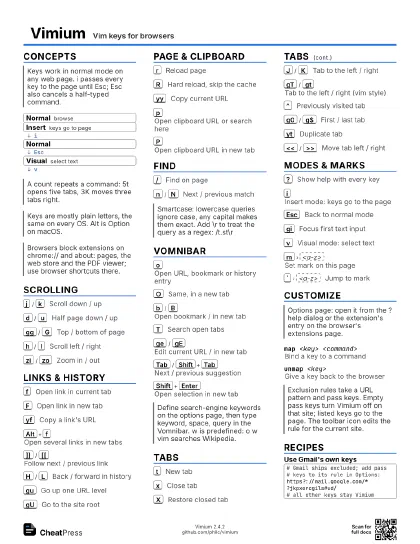
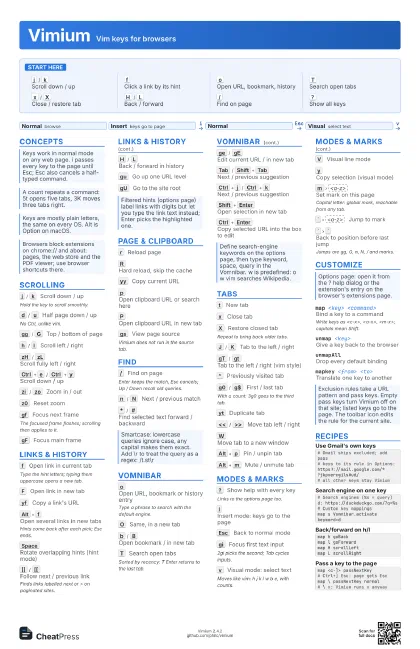
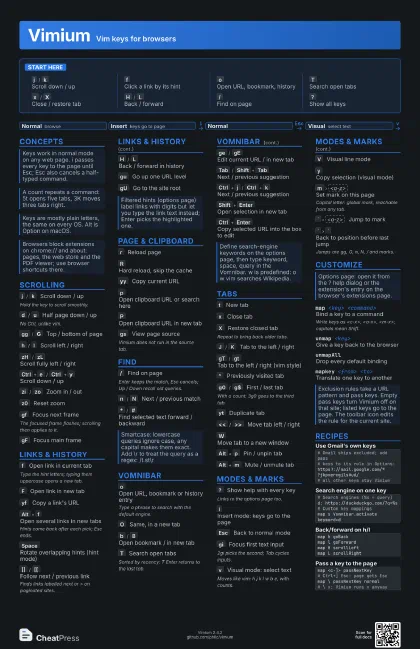
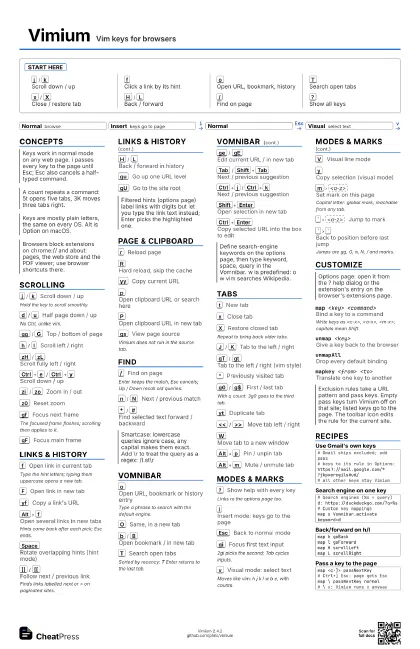
Vimium Vim keys for browsers
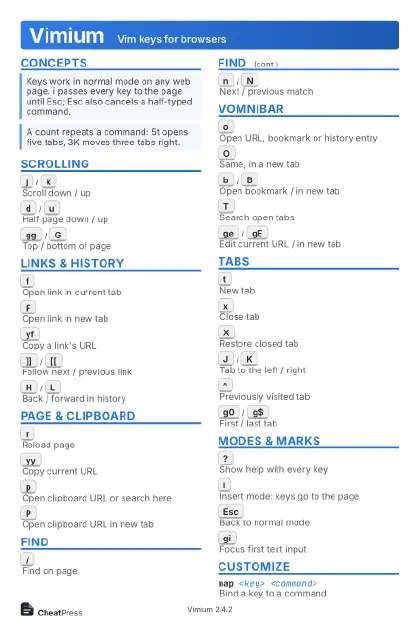 Light · Postcard
102 × 152 mm · PDF
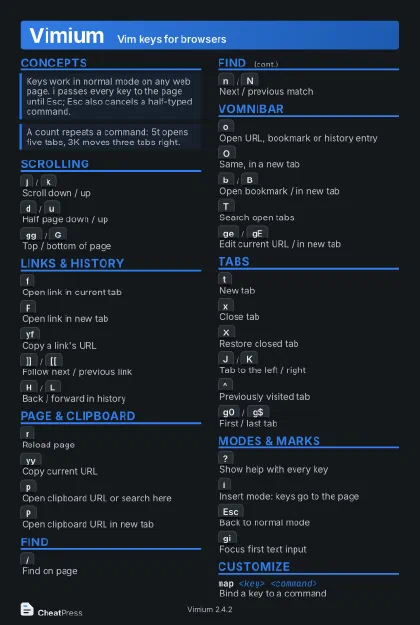 Dark · Postcard
102 × 152 mm · PDF
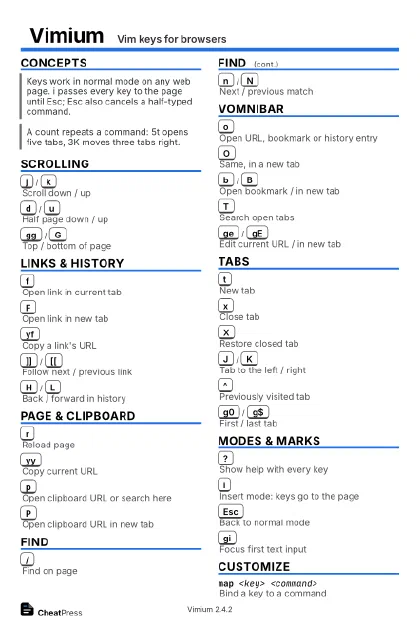 Ink saver · Postcard
102 × 152 mm · PDF
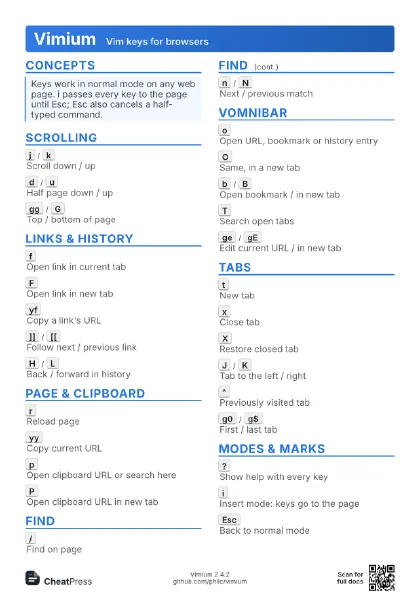
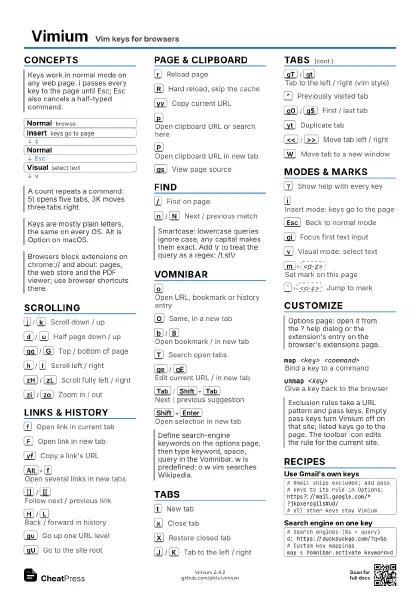
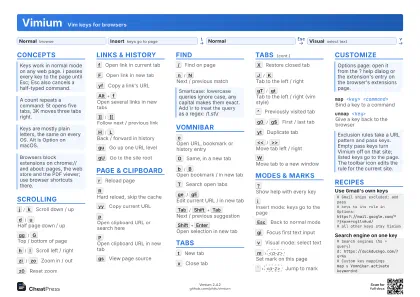 Light · A4 landscape
297 × 210 mm · PDF
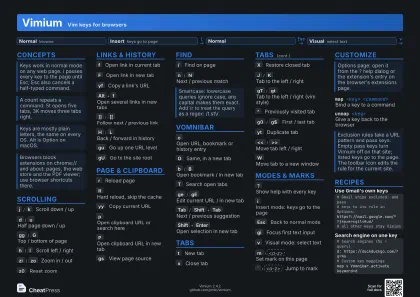 Dark · A4 landscape
297 × 210 mm · PDF
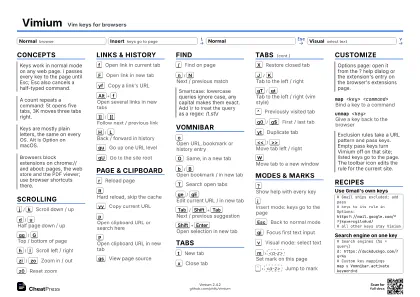 Ink saver · A4 landscape
297 × 210 mm · PDF
 Light · A3 landscape
420 × 297 mm · PDF
 Dark · A3 landscape
420 × 297 mm · PDF
 Ink saver · A3 landscape
420 × 297 mm · PDF
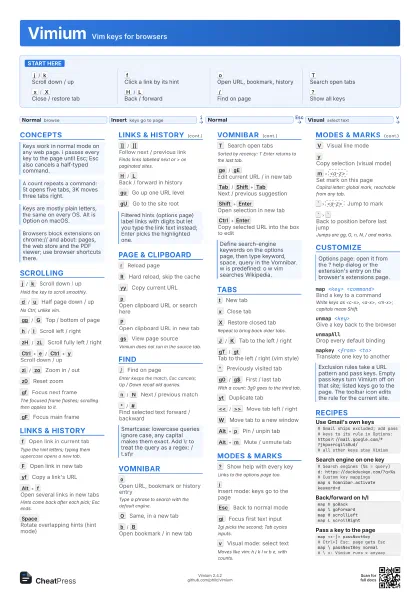
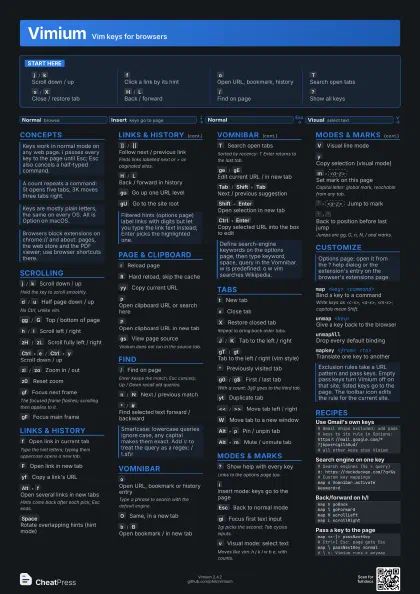
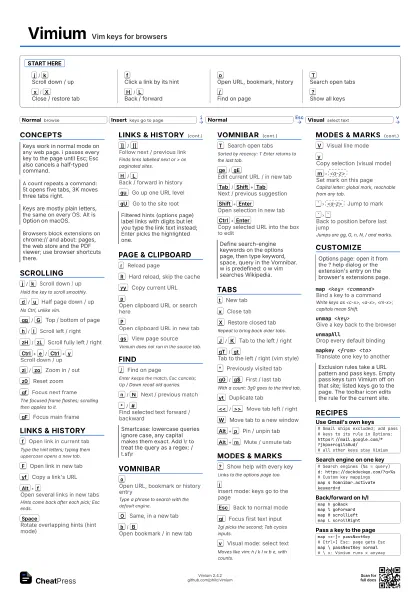
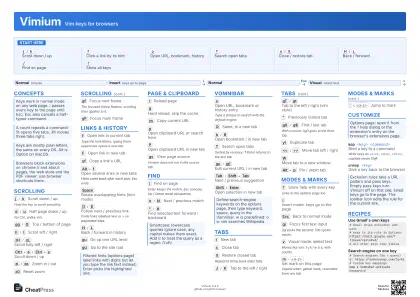
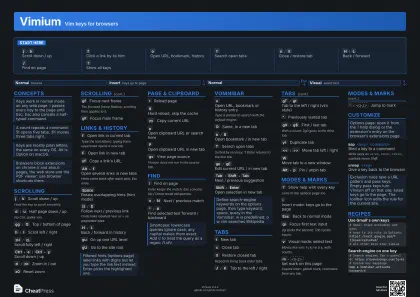
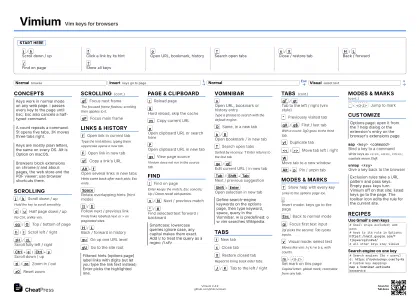
Start here
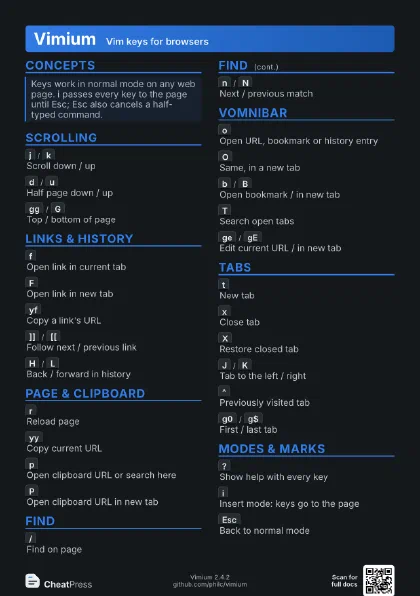
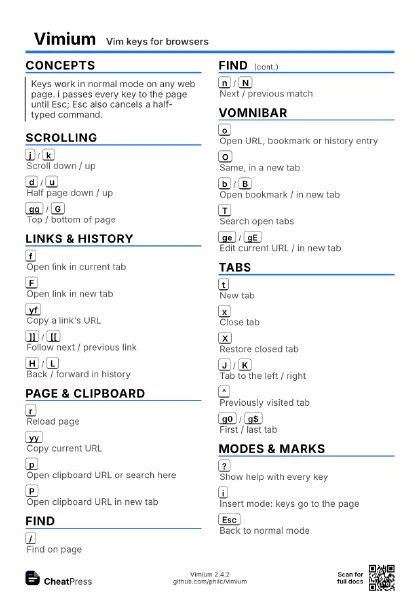
j
/
k
Scroll down / up
f
Click a link by its hint
o
Open URL, bookmark, history
T
Search open tabs
x
/
X
Close / restore tab
H
/
L
Back / forward
/
Find on page
?
Show all keys
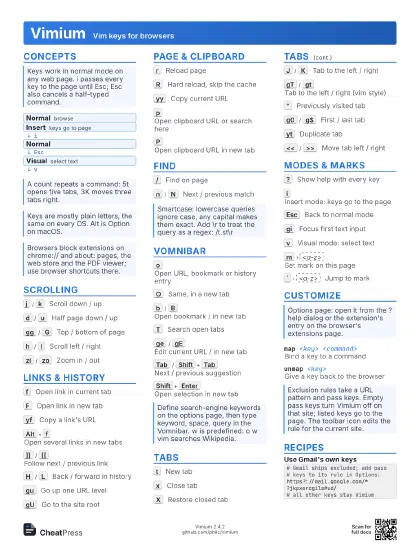
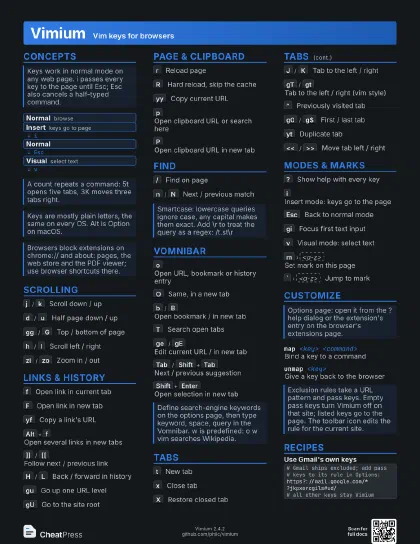
Concepts
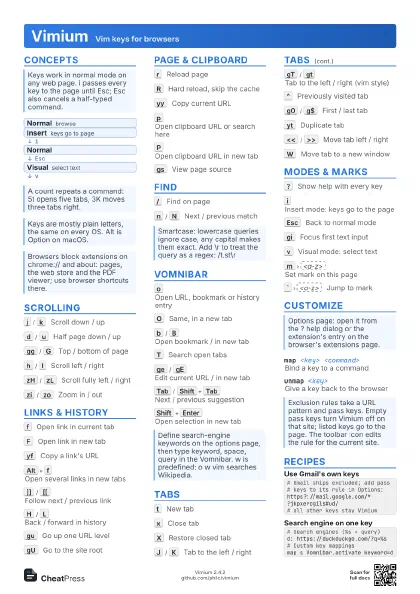
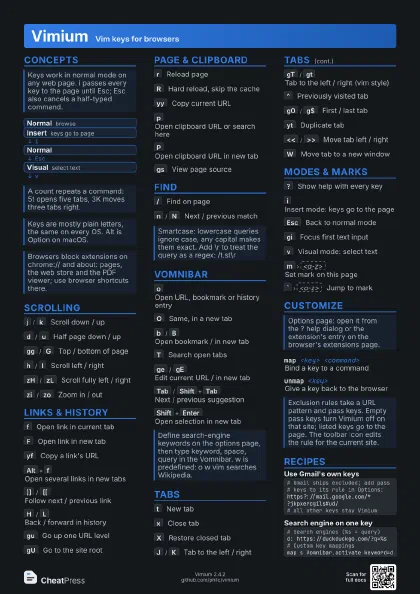
- Normal browse
- Insert keys go to page
- Normal
- Visual select text
Scrolling
j
/
k
Scroll down / up
Hold the key to scroll smoothly.
d
/
u
Half page down / up
No Ctrl, unlike vim.
gg
/
G
Top / bottom of page
h
/
l
Scroll left / right
zH
/
zL
Scroll fully left / right
Ctrl+e
/
Ctrl+y
Scroll down / up
zi
/
zo
Zoom in / out
z0
Reset zoom
gf
Focus next frame
The focused frame flashes; scrolling then applies to it.
gF
Focus main frame
Links & History
f
Open link in current tab
Type the hint letters; typing them uppercase opens a new tab.
F
Open link in new tab
yf
Copy a link's URL
Alt+f
Open several links in new tabs
Hints come back after each pick; Esc ends.
Space
Rotate overlapping hints (hint mode)
]]
/
[[
Follow next / previous link
Finds links labelled next or > on paginated sites.
H
/
L
Back / forward in history
gu
Go up one URL level
gU
Go to the site root
Page & Clipboard
r
Reload page
R
Hard reload, skip the cache
yy
Copy current URL
p
Open clipboard URL or search here
P
Open clipboard URL in new tab
gs
View page source
Vimium does not run in the source tab.
Find
/
Find on page
Enter keeps the match, Esc cancels; Up / Down recall old
queries.
n
/
N
Next / previous match
*
/
#
Find selected text forward / backward
Vomnibar
o
Open URL, bookmark or history entry
Type a phrase to search with the default engine.
O
Same, in a new tab
b
/
B
Open bookmark / in new tab
T
Search open tabs
Sorted by recency: T Enter returns to the last tab.
ge
/
gE
Edit current URL / in new tab
Tab
/
Shift+Tab
Next / previous suggestion
Ctrl+j
/
Ctrl+k
Next / previous suggestion
Shift+Enter
Open selection in new tab
Ctrl+Enter
Copy selected URL into the box to edit
Tabs
t
New tab
x
Close tab
X
Restore closed tab
Repeat to bring back older tabs.
J
/
K
Tab to the left / right
gT
/
gt
Tab to the left / right (vim style)
^
Previously visited tab
g0
/
g$
First / last tab
With a count: 3g0 goes to the third tab.
yt
Duplicate tab
<<
/
>>
Move tab left / right
W
Move tab to a new window
Alt+p
Pin / unpin tab
Alt+m
Mute / unmute tab
Modes & Marks
?
Show help with every key
Links to the options page too.
i
Insert mode: keys go to the page
Esc
Back to normal mode
gi
Focus first text input
2gi picks the second; Tab cycles inputs.
v
Visual mode: select text
Moves like vim: h j k l w b e, with counts.
V
Visual line mode
y
Copy selection (visual mode)
m
<a-z>
Set mark on this page
Capital letter: global mark, reachable from any tab.
`
<a-z>
Jump to mark
`
`
Back to position before last jump
Jumps are gg, G, n, N, / and marks.
Customize
map <key> <command>
Bind a key to a command
Write keys as <c-x>, <a-x>, <m-x>; capitals
mean Shift.
unmap <key>
Give a key back to the browser
unmapAllDrop every default binding
mapkey <from> <to>
Translate one key to another
Recipes
# Gmail ships excluded; add pass# keys to its rule in Options:https?://mail.google.com/*?jkpxercgils#ud/# all other keys stay Vimium# Search engines (%s = query)d: https://duckduckgo.com/?q=%s# Custom key mappingsmap s Vomnibar.activate keyword=dmap h goBackmap l goForwardmap H scrollLeftmap L scrollRightmap <c-]> passNextKey# Ctrl+] Esc: page gets Escmap \ passNextKey normal# \ x: Vimium runs x anyway