Cheat
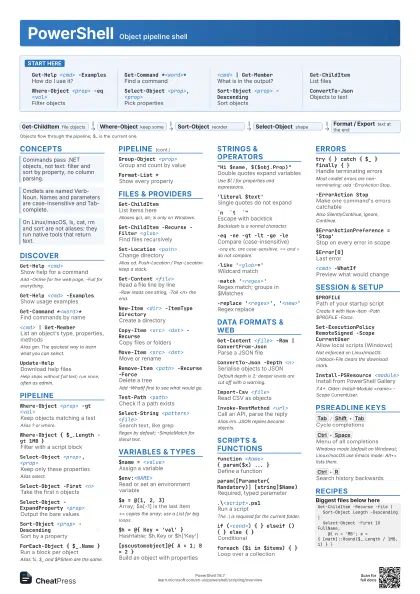
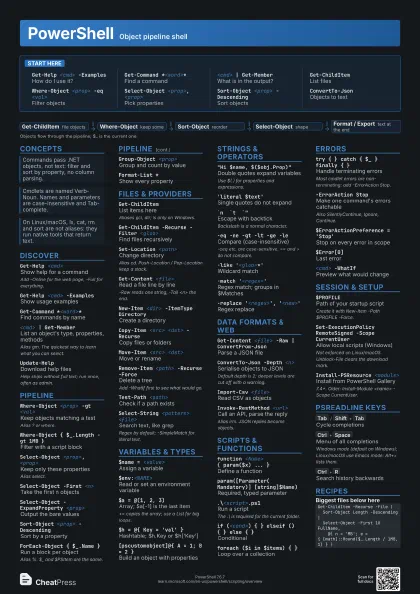
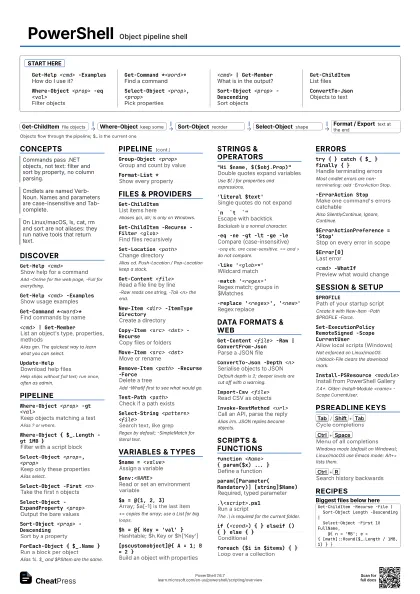
PowerShell Object pipeline shell
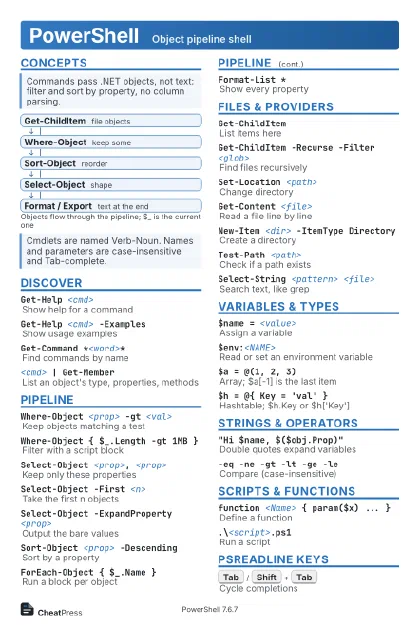 Light · Postcard
102 × 152 mm · PDF
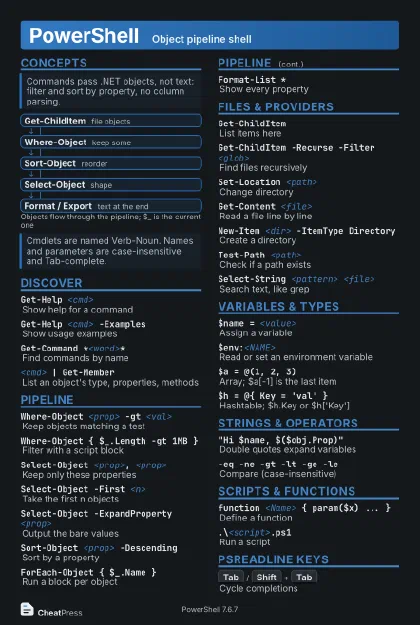 Dark · Postcard
102 × 152 mm · PDF
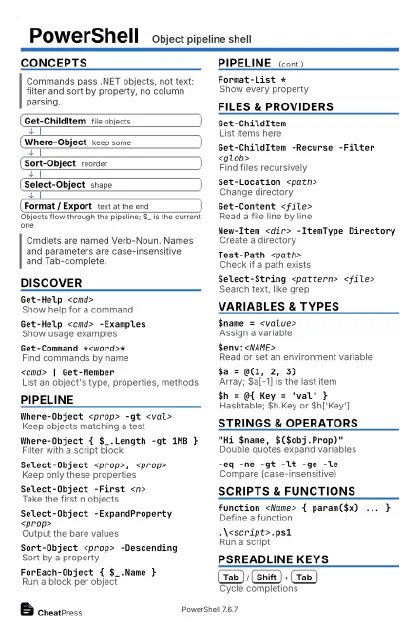 Ink saver · Postcard
102 × 152 mm · PDF
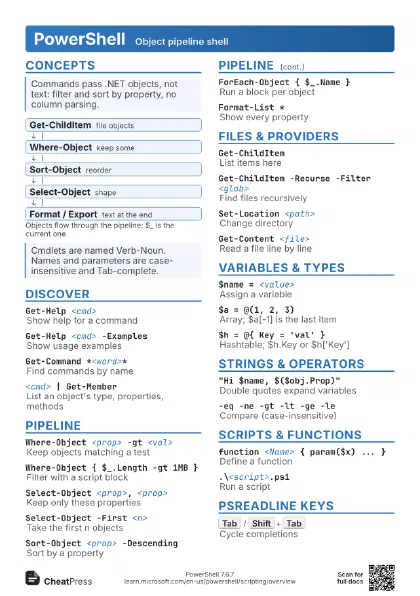
 Light · A4 landscape
297 × 210 mm · PDF
 Dark · A4 landscape
297 × 210 mm · PDF
 Ink saver · A4 landscape
297 × 210 mm · PDF
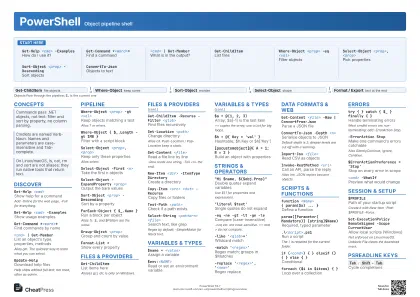 Light · A3 landscape
420 × 297 mm · PDF
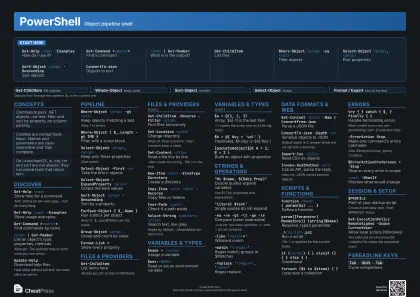 Dark · A3 landscape
420 × 297 mm · PDF
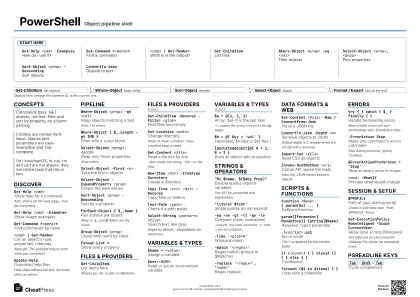 Ink saver · A3 landscape
420 × 297 mm · PDF
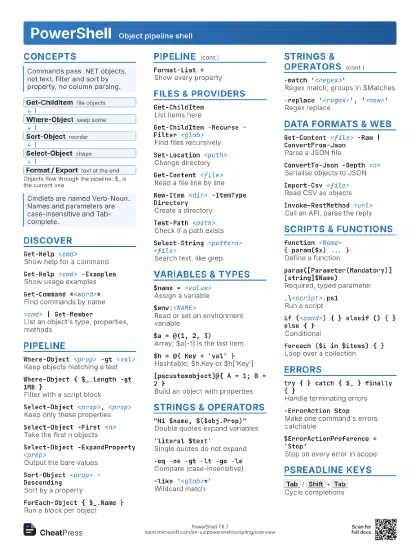
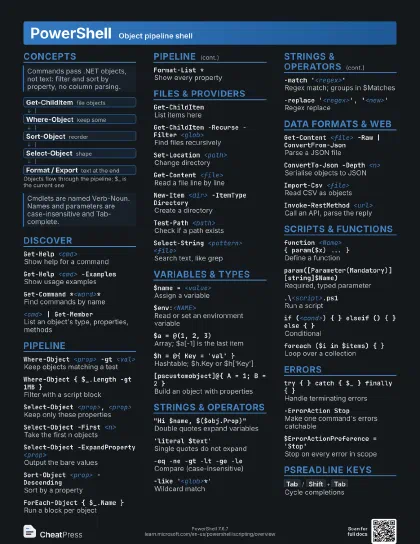
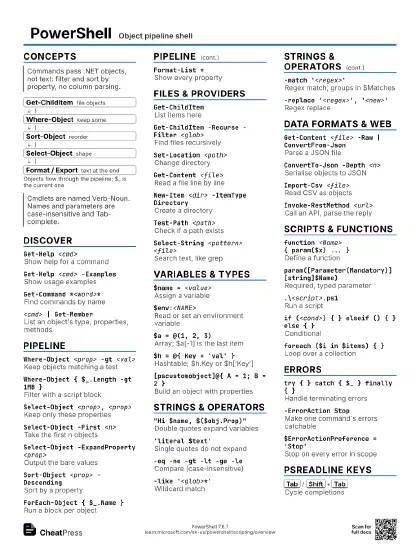
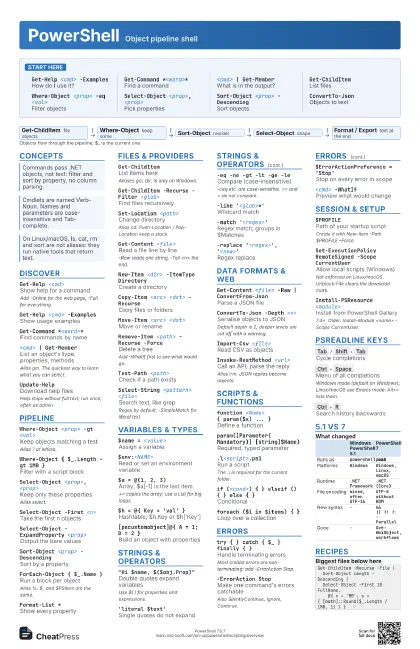
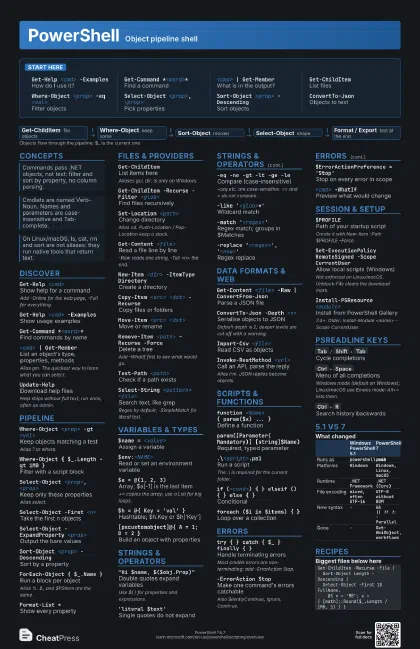
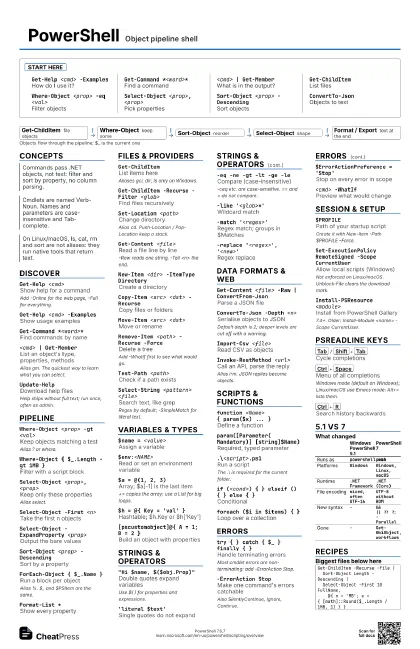
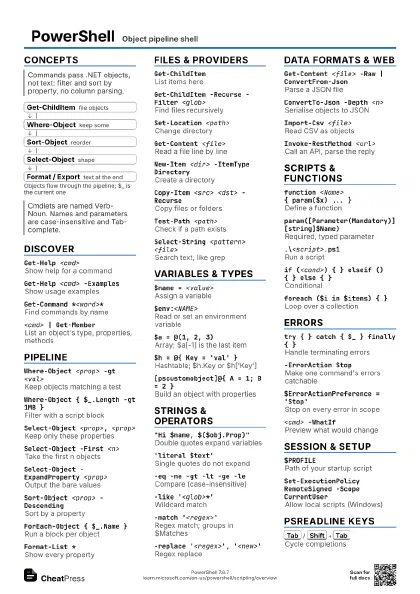
Start here
Get-Help <cmd> -Examples
How do I use it?
Get-Command *<word>*
Find a command
<cmd> | Get-Member
What is in the output?
Get-ChildItemList files
Where-Object <prop> -eq <val>
Filter objects
Select-Object <prop>, <prop>
Pick properties
Sort-Object <prop> -Descending
Sort objects
ConvertTo-JsonObjects to text
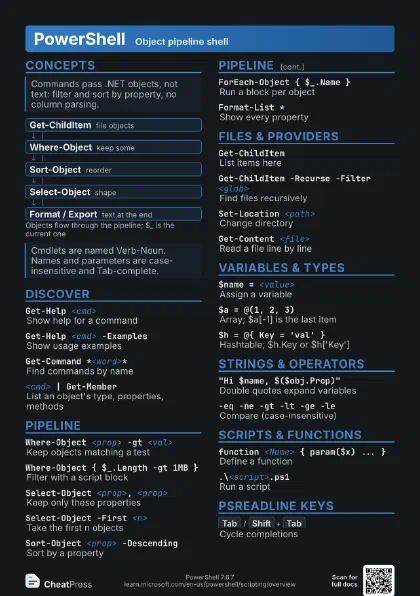
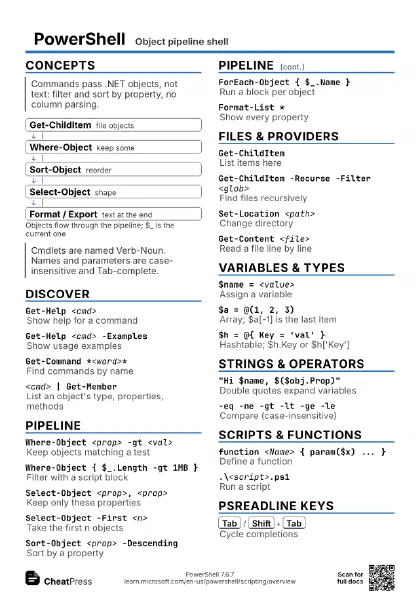
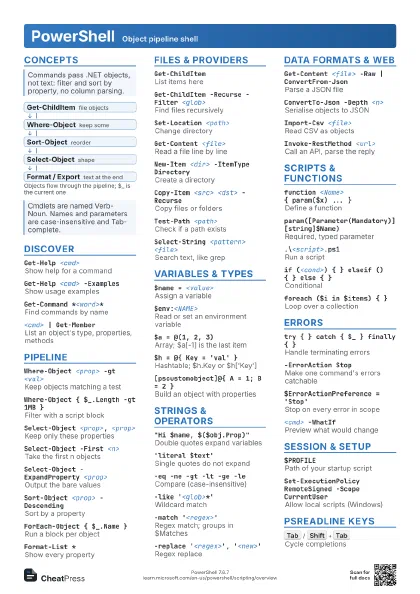
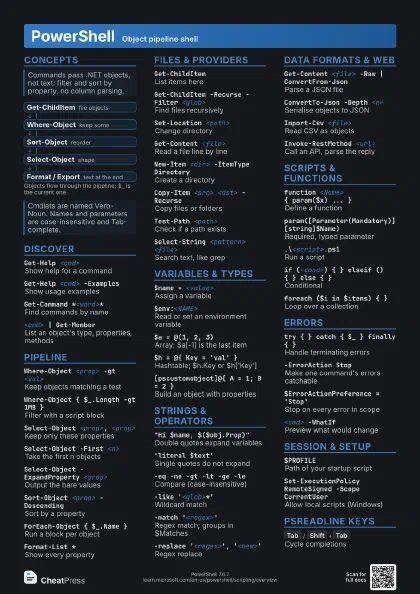
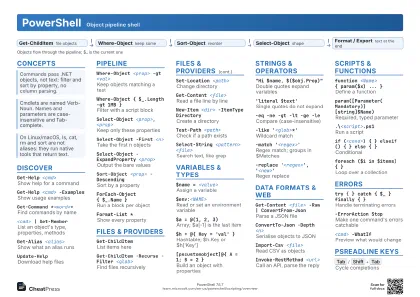
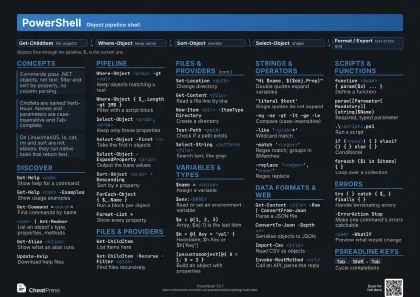
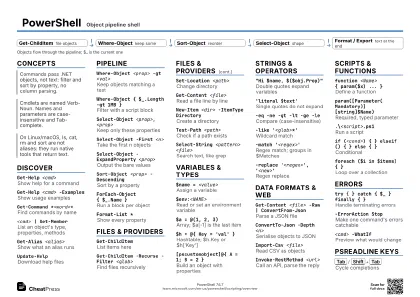
Concepts
- Get-ChildItem file objects
- Where-Object keep some
- Sort-Object reorder
- Select-Object shape
- Format / Export text at the end
Discover
Get-Help <cmd>
Show help for a command
Add -Online for the web page, -Full for everything.
Get-Help <cmd> -Examples
Show usage examples
Get-Command *<word>*
Find commands by name
Get-Command -Verb <verb> -Noun <noun>
Find commands by verb or noun
<cmd> | Get-Member
List an object's type, properties, methods
Alias gm. The quickest way to learn what you can select.
Get-Alias <alias>
Show what an alias runs
Update-HelpDownload help files
Help ships without full text; run once, often as admin.
Get-Help about_<topic>
Read a concept topic
e.g. about_Operators, about_Splatting.
Pipeline
Where-Object <prop> -gt <val>
Keep objects matching a test
Alias ? or where.
Where-Object { $_.Length -gt 1MB }
Filter with a script block
Select-Object <prop>, <prop>
Keep only these properties
Alias select.
Select-Object -First <n>
Take the first n objects
Select-Object -ExpandProperty <prop>
Output the bare values
Sort-Object <prop> -Descending
Sort by a property
ForEach-Object { $_.Name }
Run a block per object
Alias %. $_ and $PSItem are the same.
Group-Object <prop>
Group and count by value
Measure-Object <prop> -Sum -Average
Count, sum, average
Format-Table -AutoSize
Show as a table
Format-* is for display only: use it last.
Format-List *Show every property
Out-File <file>
Write output to a file
Files & providers
Get-ChildItemList items here
Aliases gci, dir; ls only on Windows.
Get-ChildItem -Recurse -Filter <glob>
Find files recursively
Set-Location <path>
Change directory
Alias cd. Push-Location / Pop-Location keep a stack.
Get-Content <file>
Read a file line by line
-Raw reads one string, -Tail <n> the end.
Set-Content <file> <text>
Overwrite a file
Add-Content <file> <text>
Append to a file
New-Item <dir> -ItemType Directory
Create a directory
Copy-Item <src> <dst> -Recurse
Copy files or folders
Move-Item <src> <dst>
Move or rename
Remove-Item <path> -Recurse -Force
Delete a tree
Add -WhatIf first to see what would go.
Test-Path <path>
Check if a path exists
Select-String <pattern> <file>
Search text, like grep
Regex by default; -SimpleMatch for literal text.
Get-PSDriveList drives (FileSystem, Env, Variable)
Windows adds HKLM:, HKCU:, Cert:.
Variables & types
$name = <value>
Assign a variable
$env:<NAME>
Read or set an environment variable
$a = @(1, 2, 3)Array; $a[-1] is the last item
+= copies the array; use a List for big loops.
$h = @{ Key = 'val' }
Hashtable; $h.Key or $h['Key']
[pscustomobject]@{ A = 1; B = 2 }
Build an object with properties
[int]$n = '42'
Cast or constrain a type
$nullNull; compare as $null -eq $x
Put $null on the left: on an array, -eq filters instead.
$PSVersionTableVersion and platform info
$x ?? <default>
Fallback if null (7+)
$cond ? <a> : <b>
Ternary operator (7+)
Strings & operators
"Hi $name, $($obj.Prop)"
Double quotes expand variables
Use $( ) for properties and expressions.
'literal $text'
Single quotes do not expand
`n `t `"Escape with backtick
Backslash is a normal character.
@" ... "@
Here-string over several lines
Opening and closing markers on their own lines; @' '@
is literal.
-eq -ne -gt -lt -ge -le
Compare (case-insensitive)
-ceq etc. are case-sensitive. == and > do not compare.
-like '<glob>*'
Wildcard match
-match '<regex>'
Regex match; groups in $Matches
-replace '<regex>',
                    '<new>'
Regex replace
-split ',' / -join ','
Split or join strings
-contains / -inIs the value in a collection
-and -or -notLogical operators
<cmd1> && <cmd2>
Run next if success; || if failure (7+)
Data formats & web
Get-Content <file> -Raw | ConvertFrom-Json
Parse a JSON file
ConvertTo-Json -Depth <n>
Serialise objects to JSON
Default depth is 2; deeper levels are cut off with a warning.
Import-Csv <file>
Read CSV as objects
Export-Csv <file> -NoTypeInformation
Write objects as CSV
7+ omits the #TYPE line already; 5.1 needs the flag.
Invoke-RestMethod <url>
Call an API, parse the reply
Alias irm. JSON replies become objects.
Invoke-WebRequest <url> -OutFile <file>
Download a file
Alias iwr. curl is the real curl in 7 on all platforms.
Scripts & functions
function <Name> { param($x) ... }
Define a function
param([Parameter(Mandatory)] [string]$Name)
Required, typed parameter
param([switch]$Force, [int]$Count = 1)
Switch and default value
[CmdletBinding()]
Add common parameters like -Verbose
Put it above param() in a function or script.
.\<script>.ps1
Run a script
The .\ is required for the current folder.
. .\<script>.ps1
Dot-source: keep its functions
if (<cond>) { } elseif () { } else { }
Conditional
foreach ($i in $items) { }
Loop over a collection
switch ($x) { 'a' { } default { } }
Match a value against cases
-Wildcard and -Regex change the matching.
$PSScriptRootFolder of the running script
$p = @{ Path = '.' }; Get-ChildItem @p
Splat a hashtable as parameters
Errors
try { } catch { $_ } finally { }
Handle terminating errors
Most cmdlet errors are non-terminating: add -ErrorAction Stop.
-ErrorAction Stop
Make one command's errors catchable
Also SilentlyContinue, Ignore, Continue.
$ErrorActionPreference = 'Stop'
Stop on every error in scope
$Error[0]Last error
Get-ErrorDetailed view of the last error (7+)
throw '<message>'
Raise a terminating error
$LASTEXITCODEExit code of the last native program
$? is only true/false for the last command.
<cmd> -WhatIf
Preview what would change
Session & setup
$PROFILEPath of your startup script
Create it with New-Item -Path $PROFILE -Force.
Get-ExecutionPolicy -List
Show script policies per scope
Set-ExecutionPolicy RemoteSigned -Scope CurrentUser
Allow local scripts (Windows)
Not enforced on Linux/macOS. Unblock-File clears the download
mark.
Install-PSResource <module>
Install from PowerShell Gallery
7.4+. Older: Install-Module <name> -Scope
CurrentUser.
Get-Process | Stop-Process
List or end processes
ForEach-Object -Parallel { } -ThrottleLimit <n>
Run blocks in parallel (7+)
pwsh -NoProfile -Command "<code>"
Run code from another shell
pwsh -File <script>.ps1
Run a script from another shell
PSReadLine keys
Tab
/
Shift+Tab
Cycle completions
Ctrl+Space
Menu of all completions
Windows mode (default on Windows); Linux/macOS use Emacs mode:
Alt+= lists them.
Ctrl+R
Search history backwards
RightArrow
Accept the grey prediction
F2
Toggle inline / list predictions
Shift+Enter
Add a line without running
5.1 vs 7
| Windows PowerShell 5.1 | PowerShell 7 | |
|---|---|---|
| Runs as | powershell.exe |
pwsh |
| Platforms | Windows |
Windows, Linux, macOS |
| Runtime | .NET Framework |
.NET (Core) |
| File encoding | mixed, often UTF-16 |
UTF-8 without BOM |
| New syntax | - |
&& || ?? ?: -Parallel |
| Gone | - |
Get-WmiObject, workflows |
Recipes
Get-ChildItem -Recurse -File | Sort-Object Length -Descending | Select-Object -First 10 FullName, @{ n = 'MB'; e = { [math]::Round($_.Length / 1MB, 1) } }$cfg = Get-Content app.json -Raw | ConvertFrom-Json$cfg.port = 8080$cfg | ConvertTo-Json -Depth 10 | Set-Content app.json$url = 'https://api.github.com/repos/PowerShell/PowerShell/releases'Invoke-RestMethod $url | Select-Object tag_name, published_at | Export-Csv releases.csv -NoTypeInformation[CmdletBinding(SupportsShouldProcess)]param([Parameter(Mandatory)][string]$Path)$ErrorActionPreference = 'Stop'try { Get-ChildItem $Path -Filter *.log | Where-Object LastWriteTime -lt (Get-Date).AddDays(-30) | Remove-Item # -WhatIf works via SupportsShouldProcess} catch { Write-Error $_; exit 1 }