Cheat
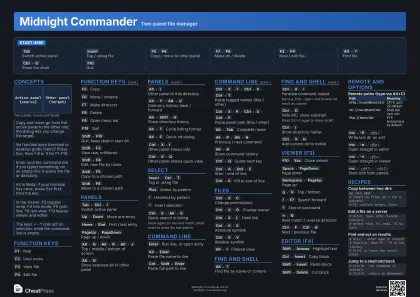
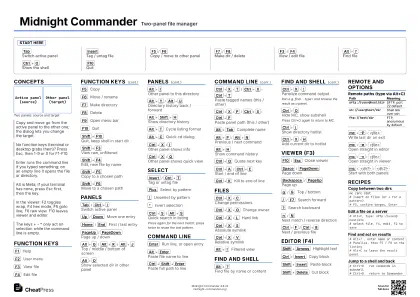
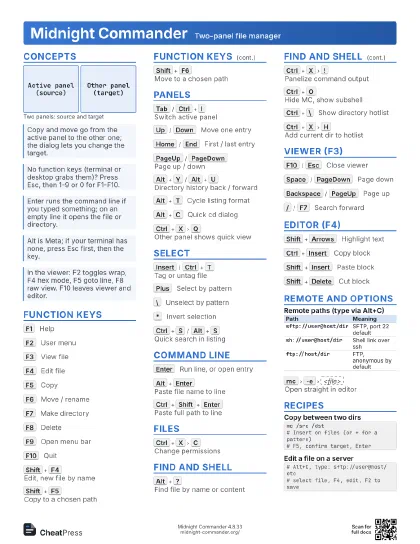
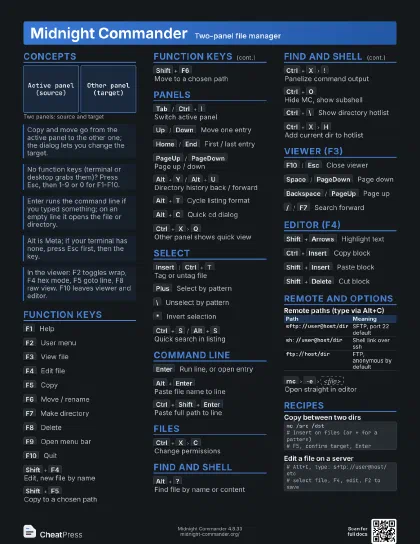
Midnight Commander Two-panel file manager
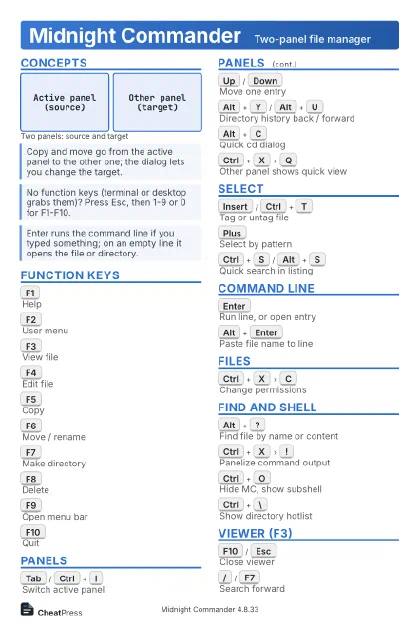 Light · Postcard
102 × 152 mm · PDF
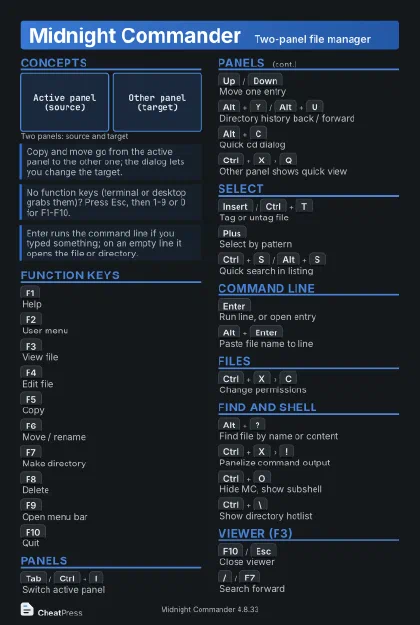 Dark · Postcard
102 × 152 mm · PDF
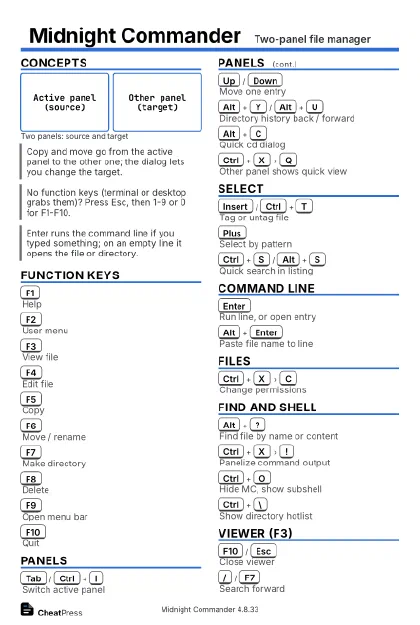 Ink saver · Postcard
102 × 152 mm · PDF
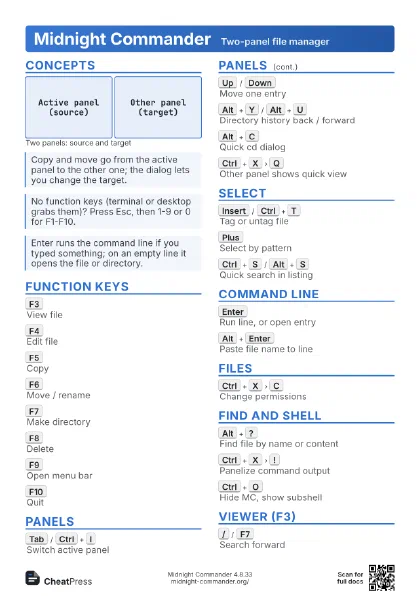
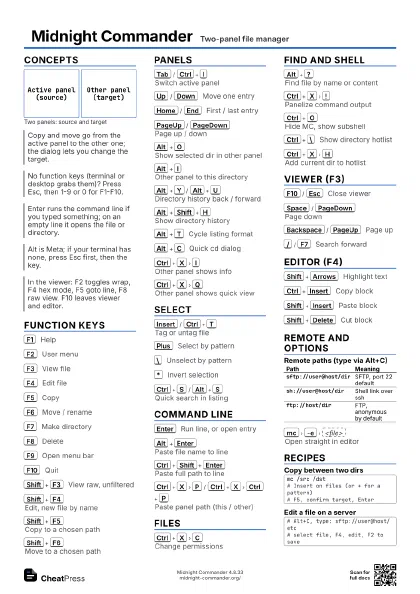
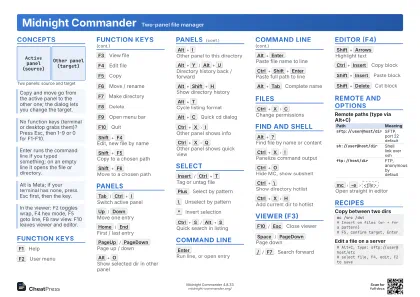 Light · A4 landscape
297 × 210 mm · PDF
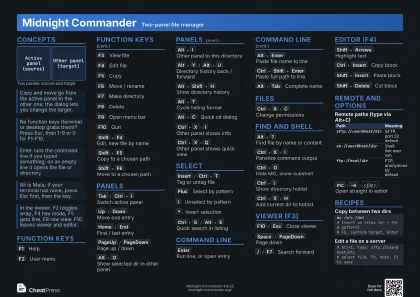 Dark · A4 landscape
297 × 210 mm · PDF
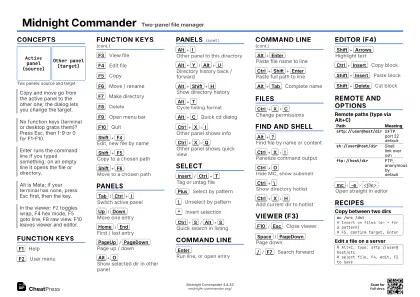 Ink saver · A4 landscape
297 × 210 mm · PDF
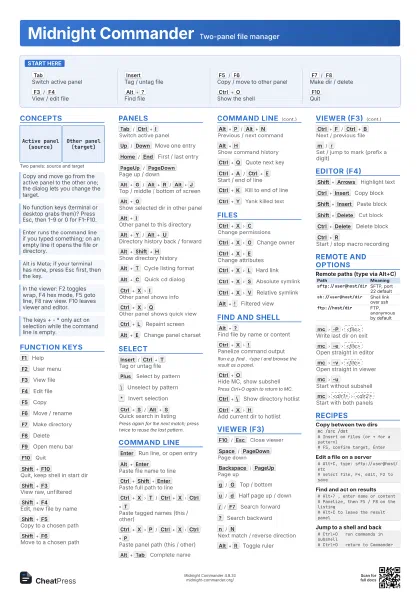
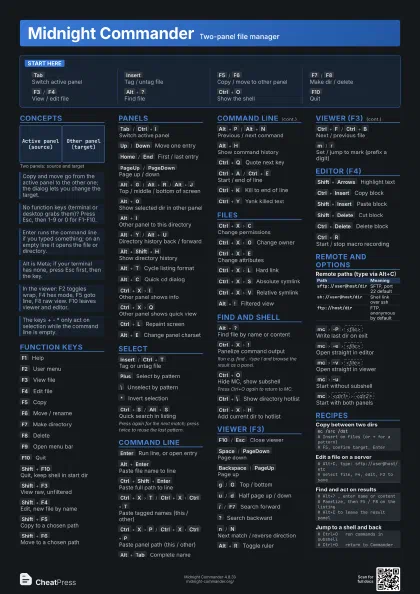
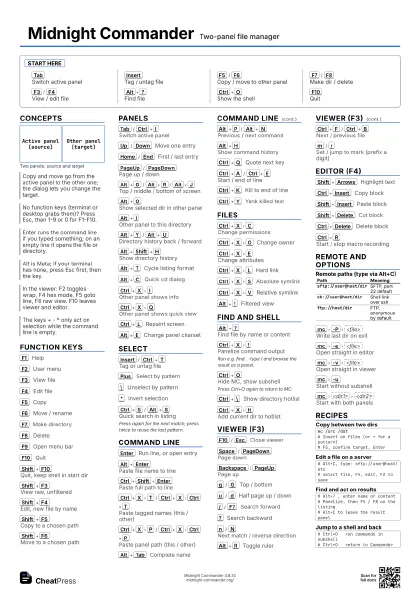
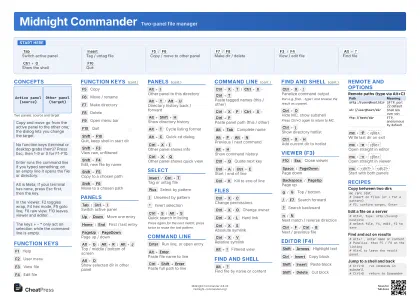 Light · A3 landscape
420 × 297 mm · PDF
 Dark · A3 landscape
420 × 297 mm · PDF
 Ink saver · A3 landscape
420 × 297 mm · PDF
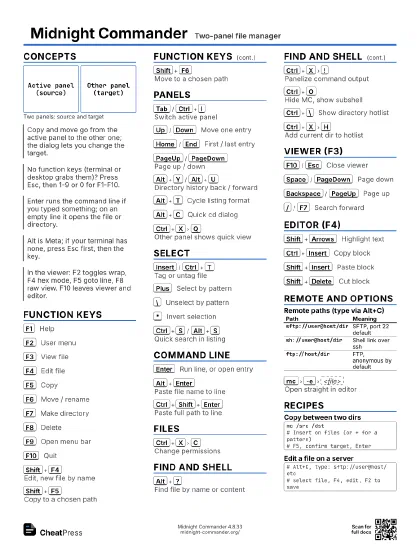
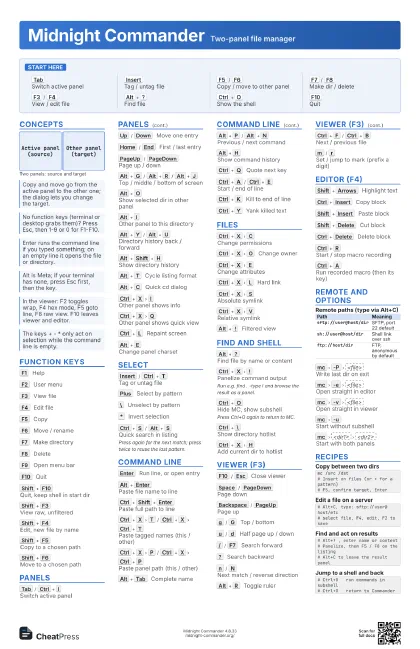
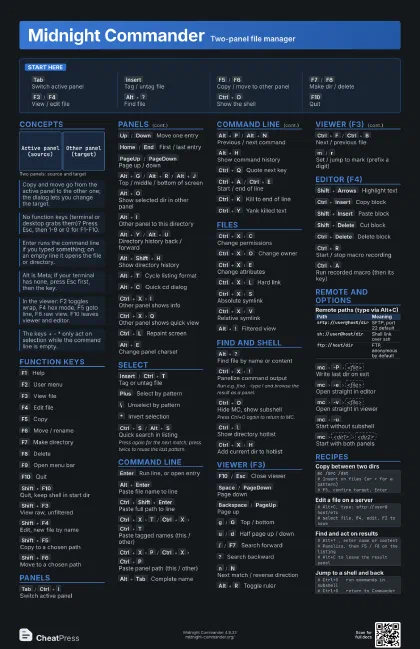
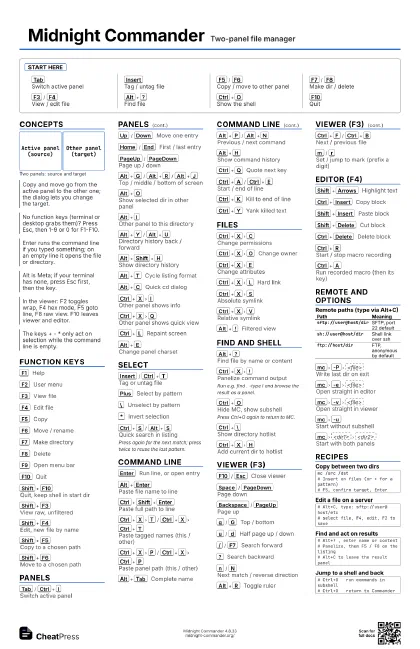
Start here
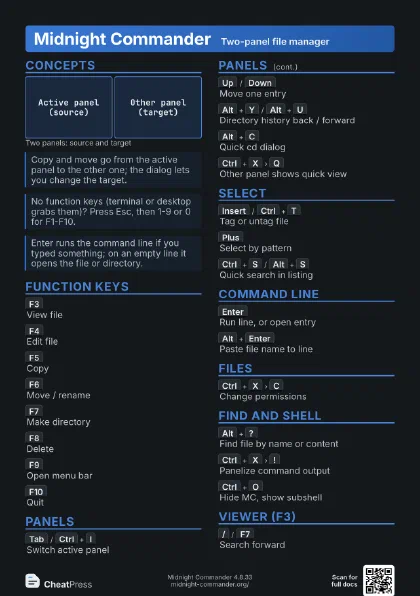
Tab
Switch active panel
Insert
Tag / untag file
F5
/
F6
Copy / move to other panel
F7
/
F8
Make dir / delete
F3
/
F4
View / edit file
Alt+?
Find file
Ctrl+O
Show the shell
F10
Quit
Concepts
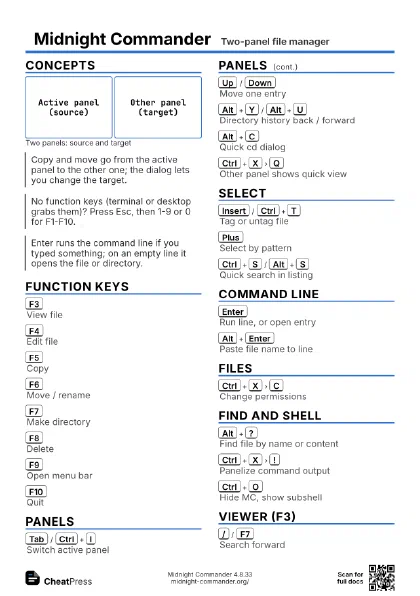
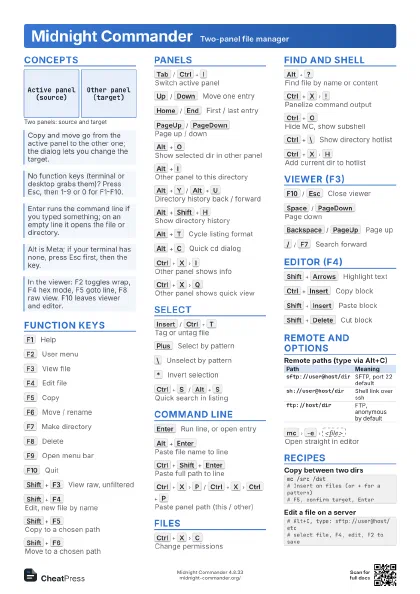
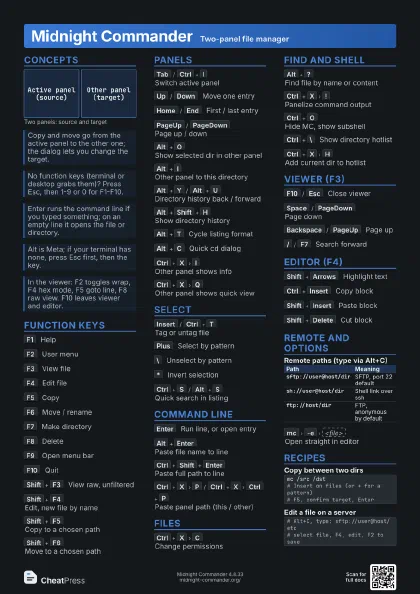
Active panel (source)
Other panel (target)
Function keys
F1
Help
F2
User menu
F3
View file
F4
Edit file
F5
Copy
F6
Move / rename
F7
Make directory
F8
Delete
F9
Open menu bar
F10
Quit
Shift+F10
Quit, keep shell in start dir
Shift+F3
View raw, unfiltered
Shift+F4
Edit, new file by name
Shift+F5
Copy to a chosen path
Shift+F6
Move to a chosen path
Panels
Tab
/
Ctrl+I
Switch active panel
Up
/
Down
Move one entry
Home
/
End
First / last entry
PageUp
/
PageDown
Page up / down
Alt+G
/
Alt+R
/
Alt+J
Top / middle / bottom of screen
Alt+O
Show selected dir in other panel
Alt+I
Other panel to this directory
Alt+Y
/
Alt+U
Directory history back / forward
Alt+Shift+H
Show directory history
Alt+T
Cycle listing format
Alt+C
Quick cd dialog
Ctrl+X
I
Other panel shows info
Ctrl+X
Q
Other panel shows quick view
Ctrl+L
Repaint screen
Alt+E
Change panel charset
Select
Insert
/
Ctrl+T
Tag or untag file
Plus
Select by pattern
\
Unselect by pattern
*
Invert selection
Ctrl+S
/
Alt+S
Quick search in listing
Press again for the next match; press twice to reuse the last
pattern.
Command line
Enter
Run line, or open entry
Alt+Enter
Paste file name to line
Ctrl+Shift+Enter
Paste full path to line
Ctrl+X
T
/
Ctrl+X
Ctrl+T
Paste tagged names (this / other)
Ctrl+X
P
/
Ctrl+X
Ctrl+P
Paste panel path (this / other)
Alt+Tab
Complete name
Alt+P
/
Alt+N
Previous / next command
Alt+H
Show command history
Ctrl+Q
Quote next key
Ctrl+A
/
Ctrl+E
Start / end of line
Ctrl+K
Kill to end of line
Ctrl+Y
Yank killed text
Files
Ctrl+X
C
Change permissions
Ctrl+X
O
Change owner
Ctrl+X
E
Change attributes
Ctrl+X
L
Hard link
Ctrl+X
S
Absolute symlink
Ctrl+X
V
Relative symlink
Alt+!
Filtered view
Find and shell
Alt+?
Find file by name or content
Ctrl+X
!
Panelize command output
Run e.g. find . -type l and browse the result as a panel.
Ctrl+O
Hide MC, show subshell
Press Ctrl+O again to return to MC.
Ctrl+\
Show directory hotlist
Ctrl+X
H
Add current dir to hotlist
Viewer (F3)
F10
/
Esc
Close viewer
Space
/
PageDown
Page down
Backspace
/
PageUp
Page up
g
/
G
Top / bottom
u
/
d
Half page up / down
/
/
F7
Search forward
?
Search backward
n
/
N
Next match / reverse direction
Alt+R
Toggle ruler
Ctrl+F
/
Ctrl+B
Next / previous file
m
/
r
Set / jump to mark (prefix a digit)
Editor (F4)
Shift+Arrows
Highlight text
Ctrl+Insert
Copy block
Shift+Insert
Paste block
Shift+Delete
Cut block
Ctrl+Delete
Delete block
Ctrl+R
Start / stop macro recording
Ctrl+A
Run recorded macro (then its key)
Remote and options
| Path | Meaning |
|---|---|
sftp://user@host/dir |
SFTP, port 22 default |
sh://user@host/dir |
Shell link over ssh |
ftp://host/dir |
FTP, anonymous by default |
mc
-P
<file>
Write last dir on exit
mc
-e
<file>
Open straight in editor
mc
-v
<file>
Open straight in viewer
mc
-u
Start without subshell
mc
<dir1>
<dir2>
Start with both panels
Recipes
mc /src /dst# Insert on files (or + for a pattern)# F5, confirm target, Enter# Alt+C, type: sftp://user@host/etc# select file, F4, edit, F2 to save# Alt+? , enter name or content# Panelize, then F5 / F8 on the listing# Alt+C to leave the result panel# Ctrl+O run commands in subshell# Ctrl+O return to Commander