Cheat
xrandr X11 display layout
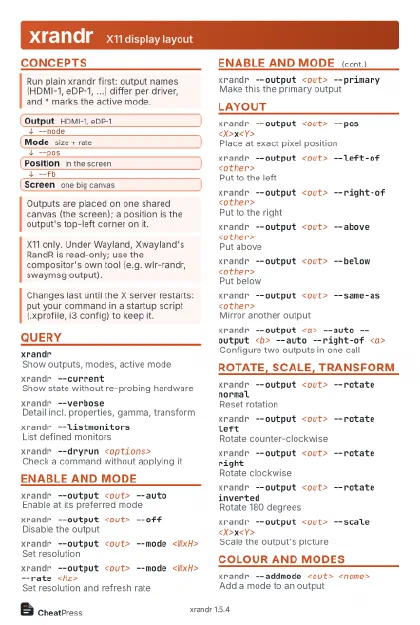 Light · Postcard
102 × 152 mm · PDF
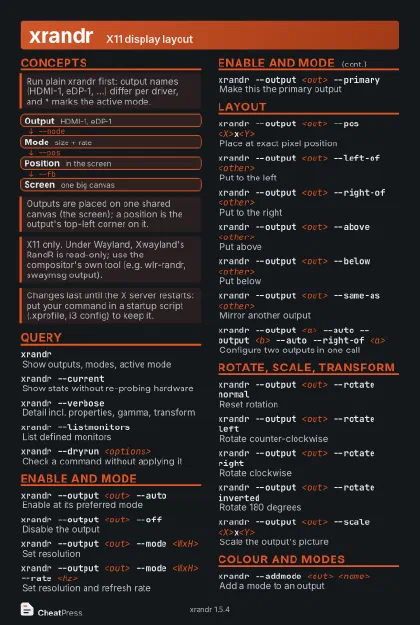 Dark · Postcard
102 × 152 mm · PDF
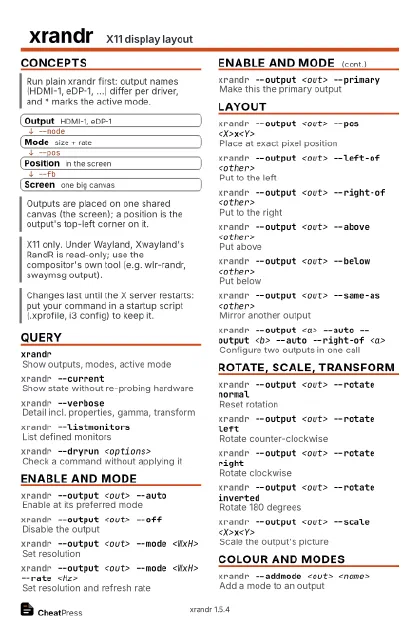 Ink saver · Postcard
102 × 152 mm · PDF
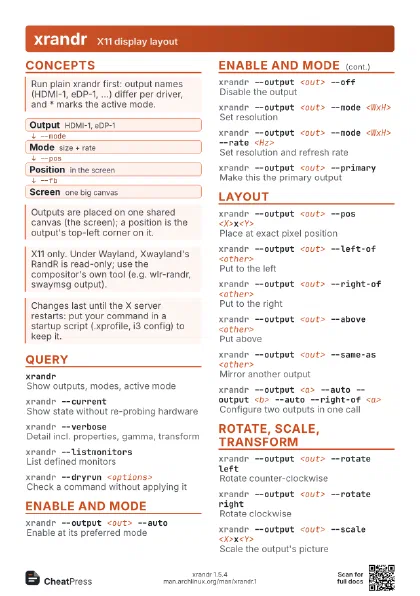
 Light · A4 landscape
297 × 210 mm · PDF
 Dark · A4 landscape
297 × 210 mm · PDF
 Ink saver · A4 landscape
297 × 210 mm · PDF
 Light · A3 landscape
420 × 297 mm · PDF
 Dark · A3 landscape
420 × 297 mm · PDF
 Ink saver · A3 landscape
420 × 297 mm · PDF
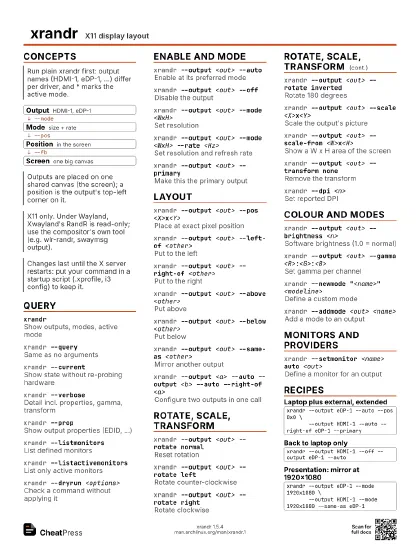
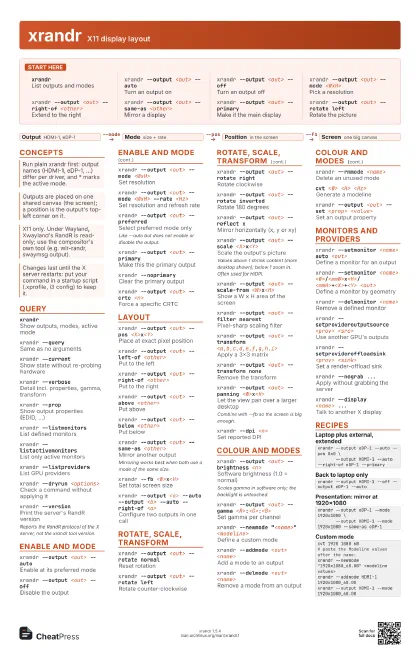
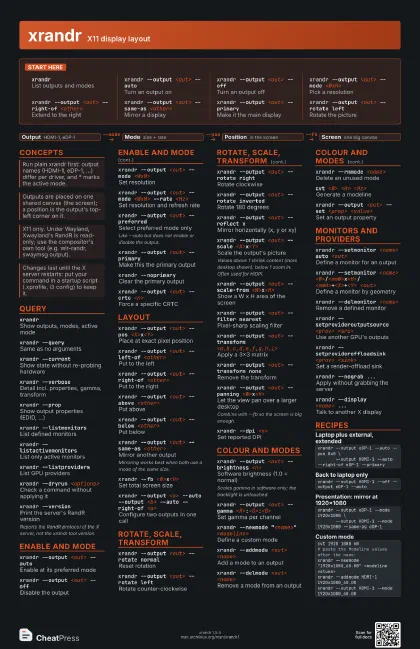
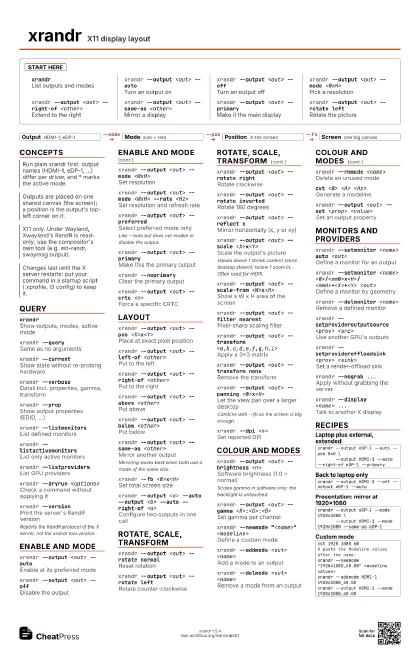
Start here
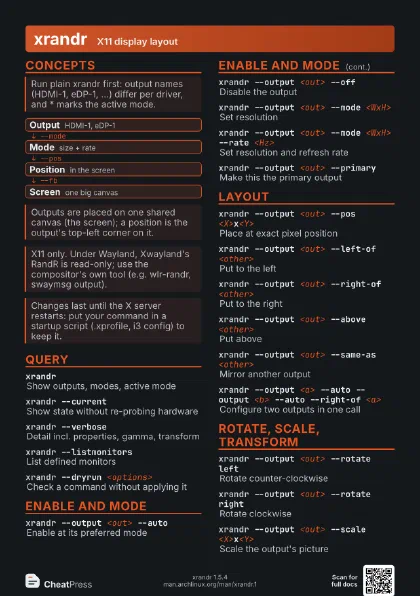
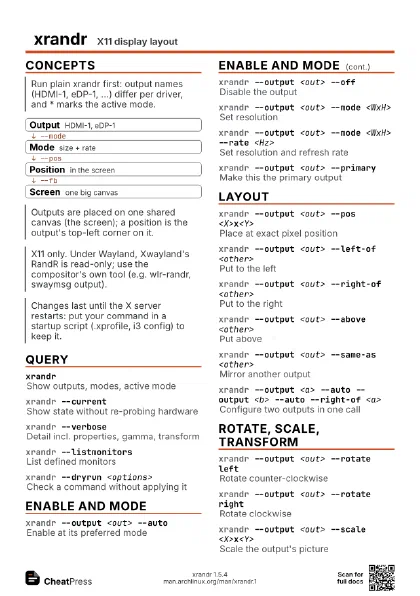
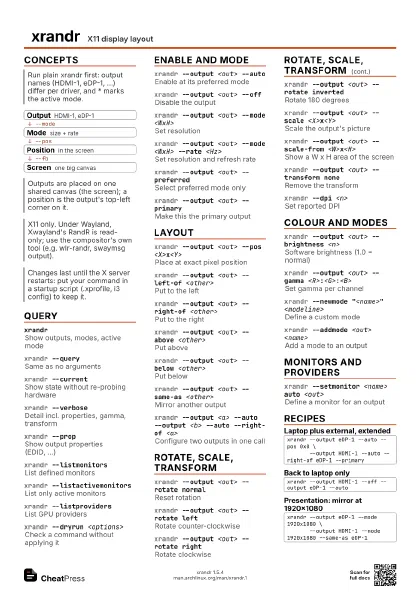
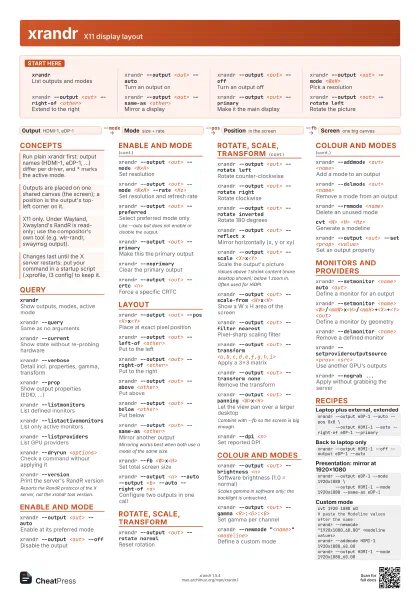
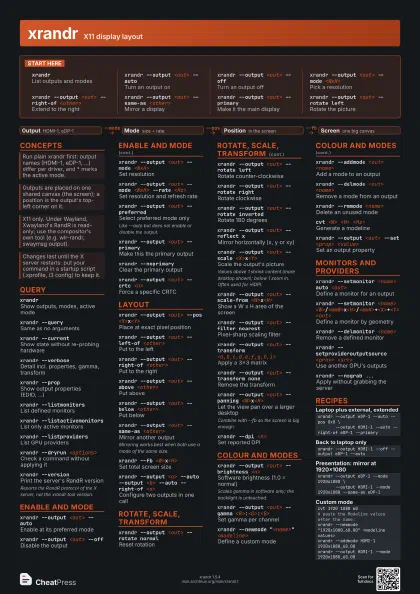
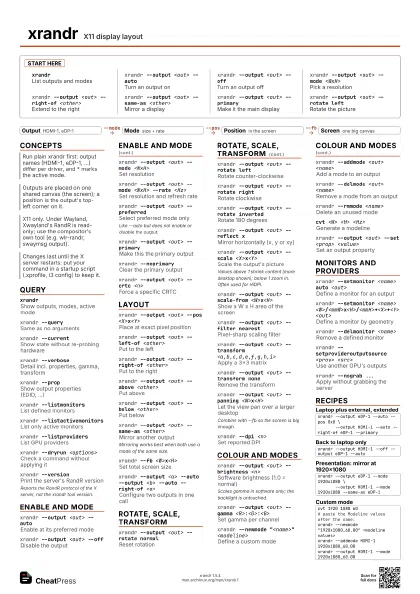
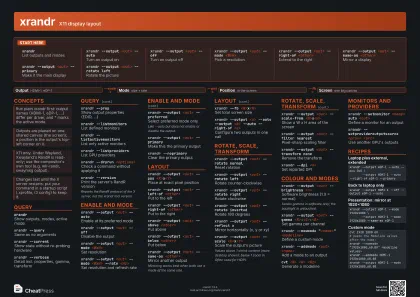
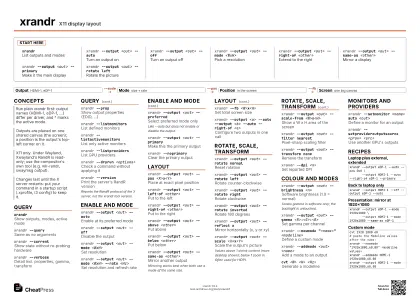
xrandrList outputs and modes
xrandr --output <out> --auto
Turn an output on
xrandr --output <out> --off
Turn an output off
xrandr --output <out> --mode <WxH>
Pick a resolution
xrandr --output <out> --right-of <other>
Extend to the right
xrandr --output <out> --same-as <other>
Mirror a display
xrandr --output <out> --primary
Make it the main display
xrandr --output <out> --rotate left
Rotate the picture
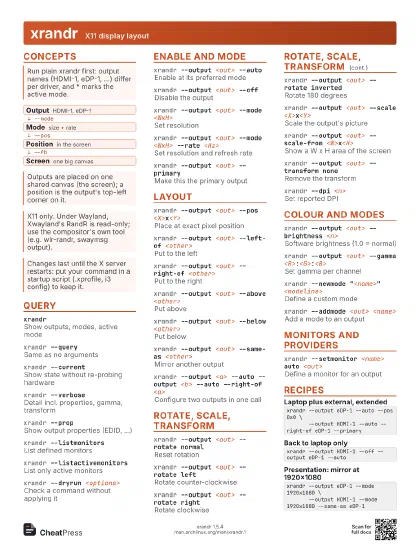
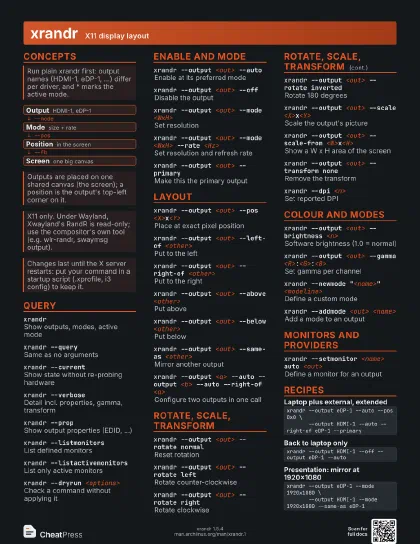
Concepts
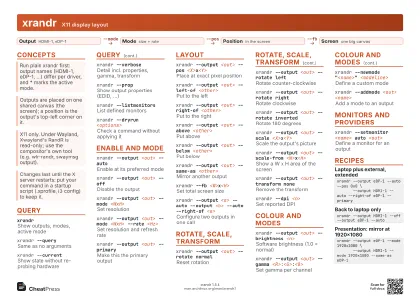
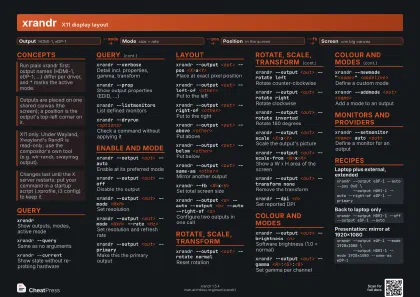
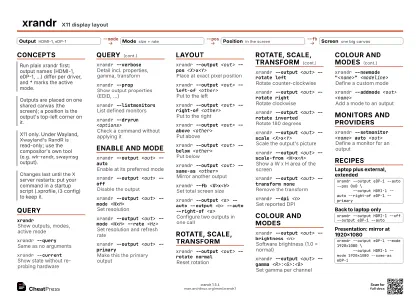
- Output HDMI-1, eDP-1
- Mode size + rate
- Position in the screen
- Screen one big canvas
Query
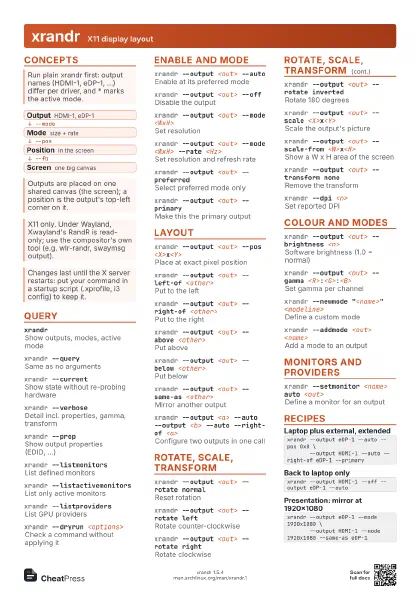
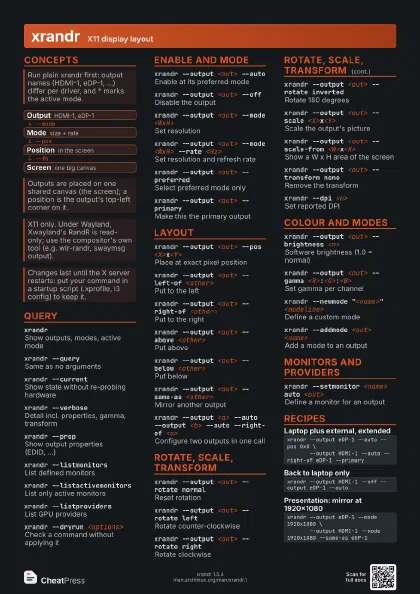
xrandrShow outputs, modes, active mode
xrandr --querySame as no arguments
xrandr --current
Show state without re-probing hardware
xrandr --verbose
Detail incl. properties, gamma, transform
xrandr --propShow output properties (EDID, ...)
xrandr --listmonitors
List defined monitors
xrandr --listactivemonitors
List only active monitors
xrandr --listproviders
List GPU providers
xrandr --dryrun <options>
Check a command without applying it
xrandr --version
Print the server's RandR version
Reports the RandR protocol of the X server, not the xrandr
tool version.
Enable and mode
xrandr --output <out> --auto
Enable at its preferred mode
xrandr --output <out> --off
Disable the output
xrandr --output <out> --mode <WxH>
Set resolution
xrandr --output <out> --mode <WxH> --rate
                    <Hz>
Set resolution and refresh rate
xrandr --output <out> --preferred
Select preferred mode only
Like --auto but does not enable or disable the output.
xrandr --output <out> --primary
Make this the primary output
xrandr --noprimary
Clear the primary output
xrandr --output <out> --crtc <n>
Force a specific CRTC
Layout
xrandr --output <out> --pos <X>x<Y>
Place at exact pixel position
xrandr --output <out> --left-of <other>
Put to the left
xrandr --output <out> --right-of <other>
Put to the right
xrandr --output <out> --above <other>
Put above
xrandr --output <out> --below <other>
Put below
xrandr --output <out> --same-as <other>
Mirror another output
Mirroring works best when both use a mode of the same size.
xrandr --fb <W>x<H>
Set total screen size
xrandr --output <a> --auto --output <b> --auto
                    --right-of <a>
Configure two outputs in one call
Rotate, scale, transform
xrandr --output <out> --rotate normal
Reset rotation
xrandr --output <out> --rotate left
Rotate counter-clockwise
xrandr --output <out> --rotate right
Rotate clockwise
xrandr --output <out> --rotate inverted
Rotate 180 degrees
xrandr --output <out> --reflect x
Mirror horizontally (x, y or xy)
xrandr --output <out> --scale
                    <X>x<Y>
Scale the output's picture
Values above 1 shrink content (more desktop shown); below 1
zoom in. Often used for HiDPI.
xrandr --output <out> --scale-from
                    <W>x<H>
Show a W x H area of the screen
xrandr --output <out> --filter nearest
Pixel-sharp scaling filter
xrandr --output <out> --transform
                    <a,b,c,d,e,f,g,h,i>
Apply a 3x3 matrix
xrandr --output <out> --transform none
Remove the transform
xrandr --output <out> --panning
                    <W>x<H>
Let the view pan over a larger desktop
Combine with --fb so the screen is big enough.
xrandr --dpi <n>
Set reported DPI
Colour and modes
xrandr --output <out> --brightness <n>
Software brightness (1.0 = normal)
Scales gamma in software only; the backlight is untouched.
xrandr --output <out> --gamma
                    <R>:<G>:<B>
Set gamma per channel
xrandr --newmode "<name>"
                    <modeline>
Define a custom mode
xrandr --addmode <out> <name>
Add a mode to an output
xrandr --delmode <out> <name>
Remove a mode from an output
xrandr --rmmode <name>
Delete an unused mode
cvt <W> <H> <Hz>
Generate a modeline
xrandr --output <out> --set <prop>
                    <value>
Set an output property
Monitors and providers
xrandr --setmonitor <name> auto <out>
Define a monitor for an output
xrandr --setmonitor <name>
                    <W>/<mmW>x<H>/<mmH>+<X>+<Y>
                    <out>
Define a monitor by geometry
xrandr --delmonitor <name>
Remove a defined monitor
xrandr --setprovideroutputsource <prov>
                    <src>
Use another GPU's outputs
xrandr --setprovideroffloadsink <prov>
                    <sink>
Set a render-offload sink
xrandr --nograb ...
Apply without grabbing the server
xrandr --display <name> ...
Talk to another X display
Recipes
xrandr --output eDP-1 --auto --pos 0x0 \ --output HDMI-1 --auto --right-of eDP-1 --primaryxrandr --output HDMI-1 --off --output eDP-1 --autoxrandr --output eDP-1 --mode 1920x1080 \ --output HDMI-1 --mode 1920x1080 --same-as eDP-1cvt 1920 1080 60# paste the Modeline values after the name:xrandr --newmode "1920x1080_60.00" <modeline values>xrandr --addmode HDMI-1 1920x1080_60.00xrandr --output HDMI-1 --mode 1920x1080_60.00