Cheat
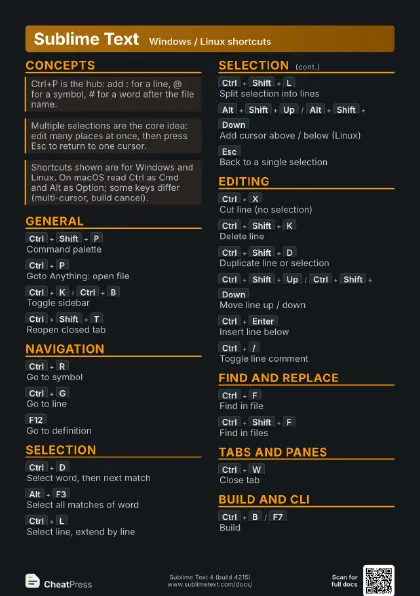
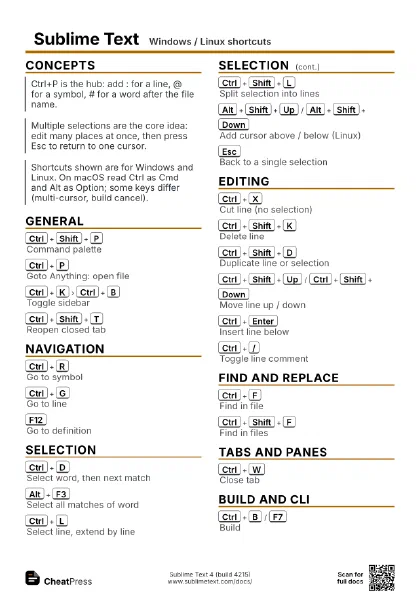
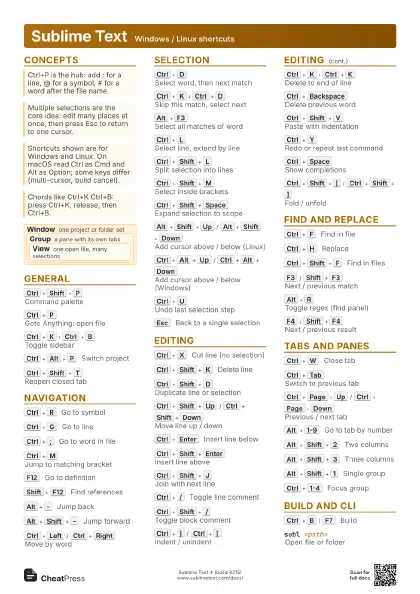
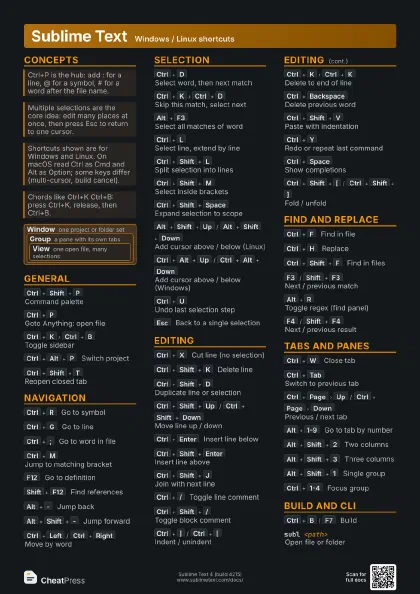
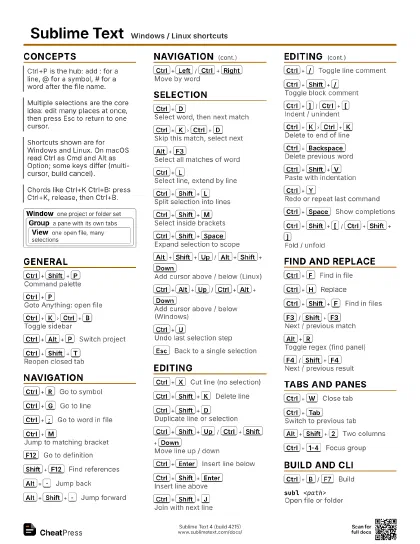
Sublime Text Windows / Linux shortcuts
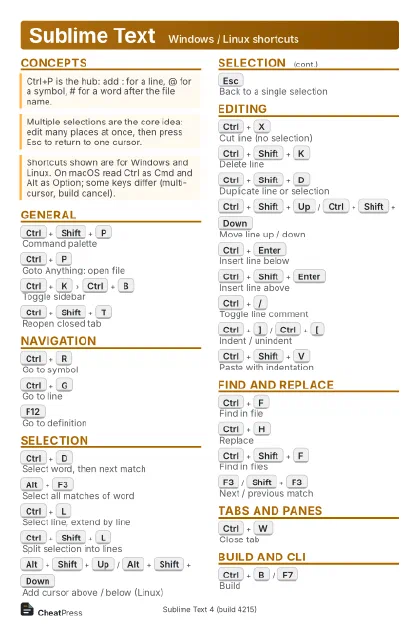 Light · Postcard
102 × 152 mm · PDF
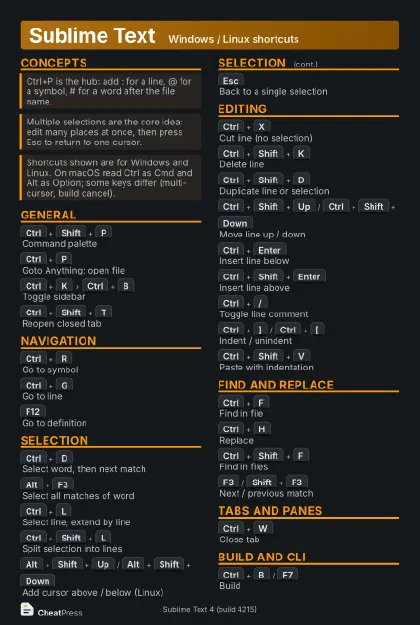 Dark · Postcard
102 × 152 mm · PDF
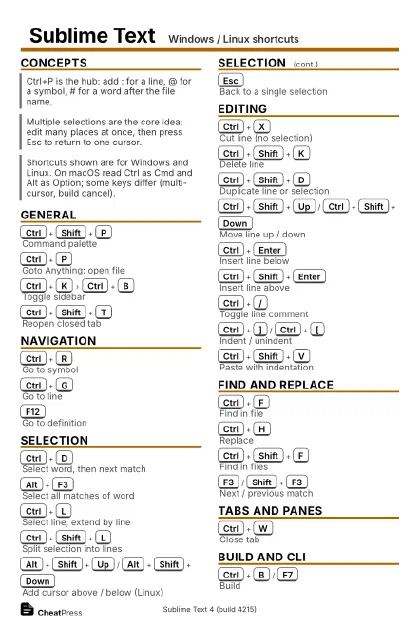 Ink saver · Postcard
102 × 152 mm · PDF
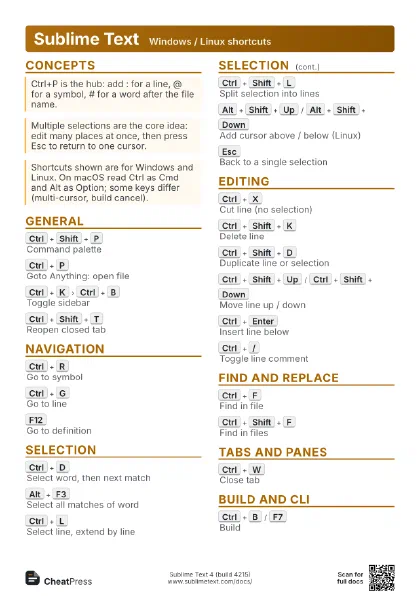
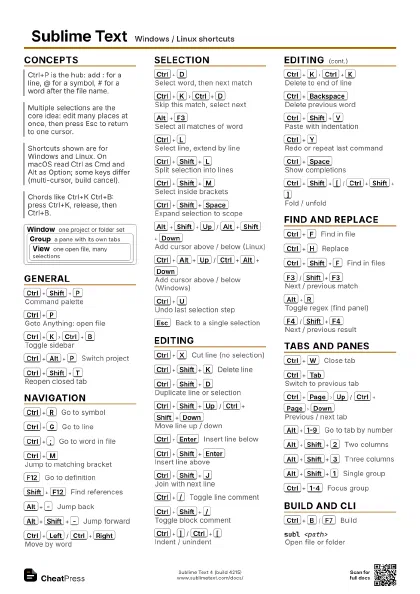
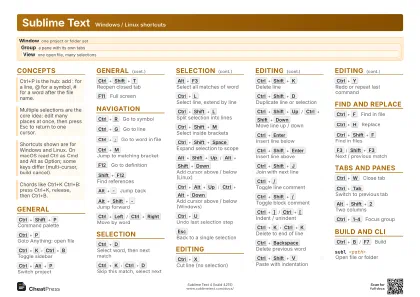 Light · A4 landscape
297 × 210 mm · PDF
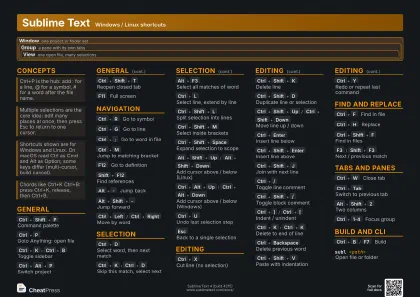 Dark · A4 landscape
297 × 210 mm · PDF
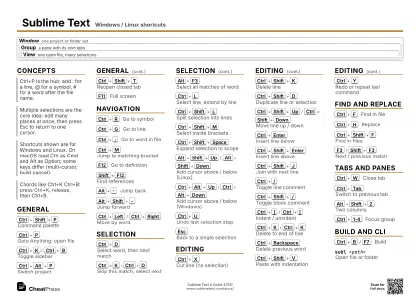 Ink saver · A4 landscape
297 × 210 mm · PDF
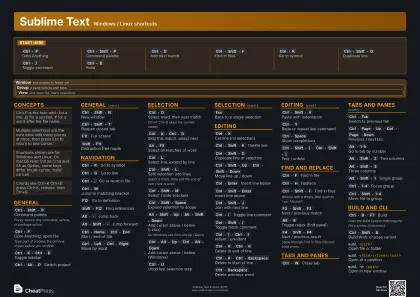
 Light · A3 landscape
420 × 297 mm · PDF
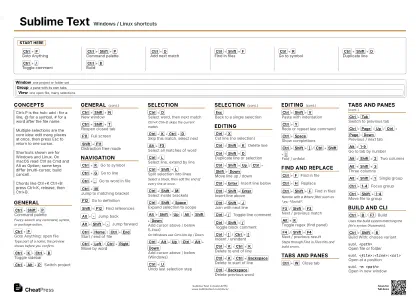
 Dark · A3 landscape
420 × 297 mm · PDF
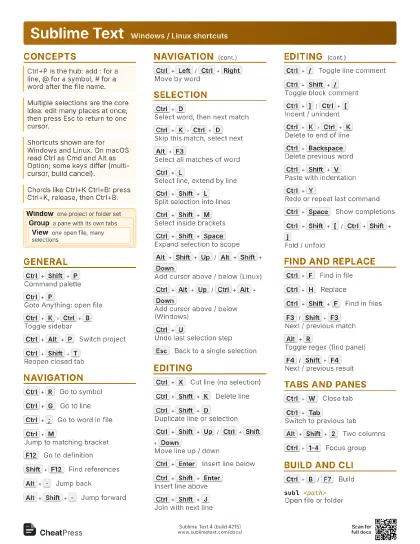
 Ink saver · A3 landscape
420 × 297 mm · PDF
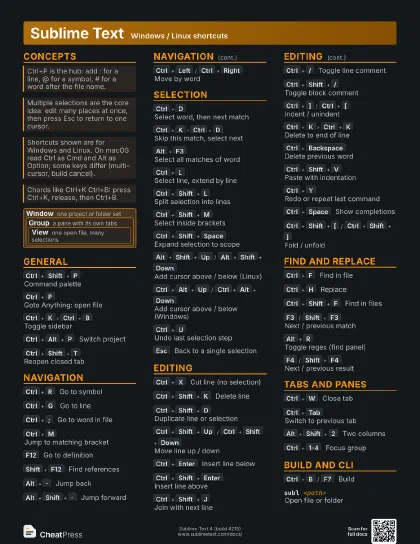
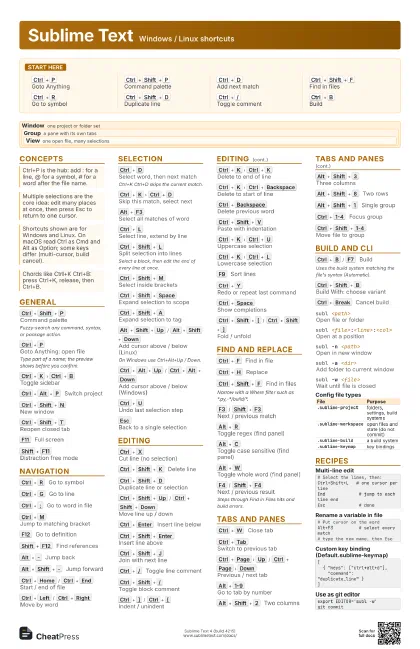
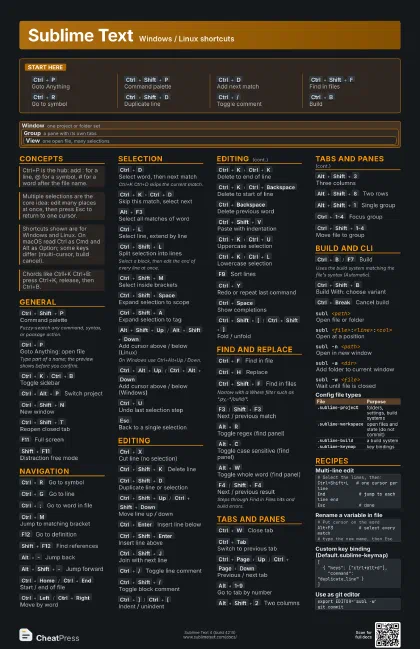
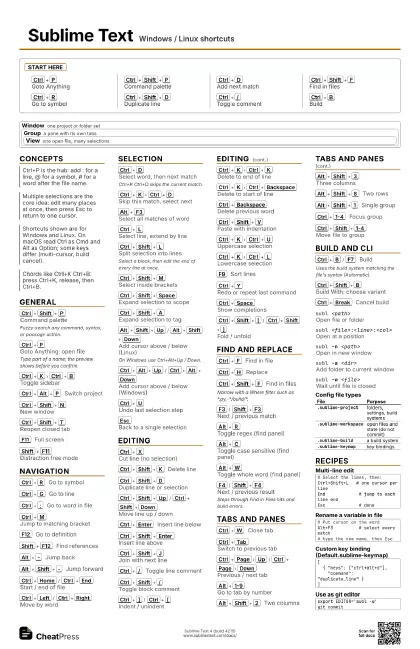
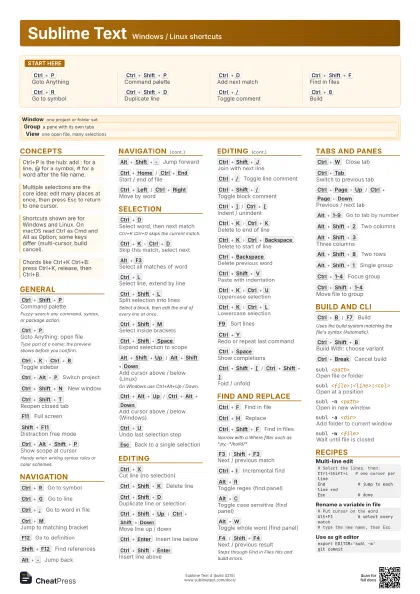
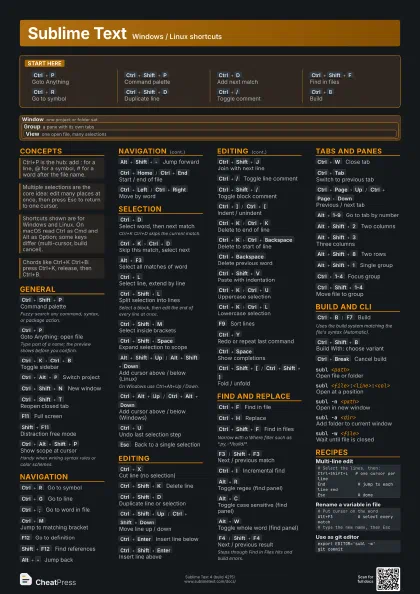
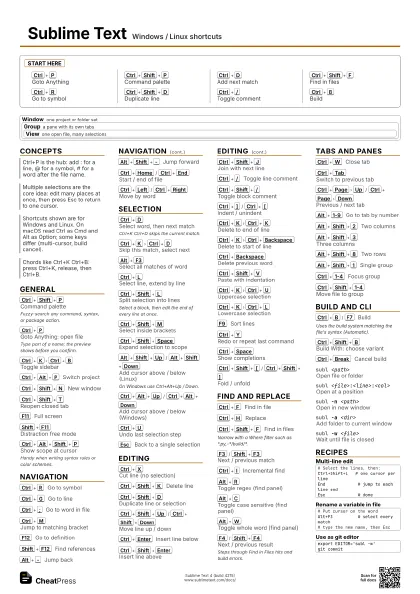
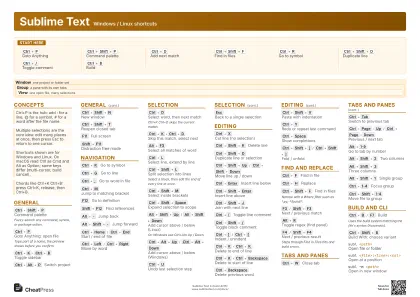
Start here
Ctrl+P
Goto Anything
Ctrl+Shift+P
Command palette
Ctrl+D
Add next match
Ctrl+Shift+F
Find in files
Ctrl+R
Go to symbol
Ctrl+Shift+D
Duplicate line
Ctrl+/
Toggle comment
Ctrl+B
Build
Concepts
Window
one project or folder set
Group
a pane with its own tabs
View
one open file, many selections
General
Ctrl+Shift+P
Command palette
Fuzzy-search any command, syntax, or package action.
Ctrl+P
Goto Anything: open file
Type part of a name; the preview shows before you confirm.
Ctrl+K
Ctrl+B
Toggle sidebar
Ctrl+Alt+P
Switch project
Ctrl+Shift+N
New window
Ctrl+Shift+T
Reopen closed tab
F11
Full screen
Shift+F11
Distraction free mode
Ctrl+Alt+Shift+P
Show scope at cursor
Handy when writing syntax rules or color schemes.
Navigation
Ctrl+R
Go to symbol
Ctrl+G
Go to line
Ctrl+;
Go to word in file
Ctrl+M
Jump to matching bracket
F12
Go to definition
Shift+F12
Find references
Alt+-
Jump back
Alt+Shift+-
Jump forward
Ctrl+Home
/
Ctrl+End
Start / end of file
Ctrl+Left
/
Ctrl+Right
Move by word
F2
/
Shift+F2
Next / previous bookmark
Ctrl+F2
Toggle bookmark
Ctrl+Shift+F2
Clear bookmarks
Selection
Ctrl+D
Select word, then next match
Ctrl+K Ctrl+D skips the current match.
Ctrl+K
Ctrl+D
Skip this match, select next
Alt+F3
Select all matches of word
Ctrl+L
Select line, extend by line
Ctrl+Shift+L
Split selection into lines
Select a block, then edit the end of every line at once.
Ctrl+Shift+M
Select inside brackets
Ctrl+Shift+Space
Expand selection to scope
Ctrl+Shift+A
Expand selection to tag
Alt+Shift+Up
/
Alt+Shift+Down
Add cursor above / below (Linux)
On Windows use Ctrl+Alt+Up / Down.
Ctrl+Alt+Up
/
Ctrl+Alt+Down
Add cursor above / below (Windows)
Ctrl+U
Undo last selection step
Esc
Back to a single selection
Editing
Ctrl+X
Cut line (no selection)
Ctrl+Shift+K
Delete line
Ctrl+Shift+D
Duplicate line or selection
Ctrl+Shift+Up
/
Ctrl+Shift+Down
Move line up / down
Ctrl+Enter
Insert line below
Ctrl+Shift+Enter
Insert line above
Ctrl+Shift+J
Join with next line
Ctrl+/
Toggle line comment
Ctrl+Shift+/
Toggle block comment
Ctrl+]
/
Ctrl+[
Indent / unindent
Ctrl+K
Ctrl+K
Delete to end of line
Ctrl+K
Ctrl+Backspace
Delete to start of line
Ctrl+Backspace
Delete previous word
Ctrl+Shift+V
Paste with indentation
Ctrl+K
Ctrl+U
Uppercase selection
Ctrl+K
Ctrl+L
Lowercase selection
F9
Sort lines
Ctrl+Y
Redo or repeat last command
Ctrl+Space
Show completions
Alt+Shift+W
Wrap selection in HTML tag
Alt+.
Close current HTML tag
Ctrl+Shift+[
/
Ctrl+Shift+]
Fold / unfold
Ctrl+K
Ctrl+1-9
Fold to level
Find and replace
Ctrl+F
Find in file
Ctrl+H
Replace
Ctrl+Shift+F
Find in files
Narrow with a Where filter such as *.py,-*/build/*.
F3
/
Shift+F3
Next / previous match
Ctrl+I
Incremental find
Alt+R
Toggle regex (find panel)
Alt+C
Toggle case sensitive (find panel)
Alt+W
Toggle whole word (find panel)
F4
/
Shift+F4
Next / previous result
Steps through Find in Files hits and build errors.
Tabs and panes
Ctrl+W
Close tab
Ctrl+Tab
Switch to previous tab
Ctrl+Page
Up
/
Ctrl+Page
Down
Previous / next tab
Alt+1-9
Go to tab by number
Alt+Shift+2
Two columns
Alt+Shift+3
Three columns
Alt+Shift+8
Two rows
Alt+Shift+5
Grid of four
Alt+Shift+1
Single group
Ctrl+1-4
Focus group
Ctrl+Shift+1-4
Move file to group
Build and CLI
Ctrl+B
/
F7
Build
Uses the build system matching the file's syntax
(Automatic).
Ctrl+Shift+B
Build With: choose variant
Ctrl+Break
Cancel build
subl <path>
Open file or folder
subl <file>:<line>:<col>
Open at a position
subl -n <path>
Open in new window
subl -a <dir>
Add folder to current window
subl -w <file>
Wait until file is closed
subl --project <file>
Open a project
| File | Purpose |
|---|---|
.sublime-project |
folders, settings, build systems |
.sublime-workspace |
open files and state (do not commit) |
.sublime-build |
a build system |
.sublime-keymap |
key bindings |
Recipes
# Select the lines, then:Ctrl+Shift+L # one cursor per lineEnd # jump to each line endEsc # done# Put cursor on the wordAlt+F3 # select every match# type the new name, then Esc[ { "keys": ["ctrl+alt+d"], "command": "duplicate_line" }]{ "folders": [{ "path": "." }], "build_systems": [{ "name": "Run", "shell_cmd": "python3 $file" }]}export EDITOR='subl -w'git commit