Cheat
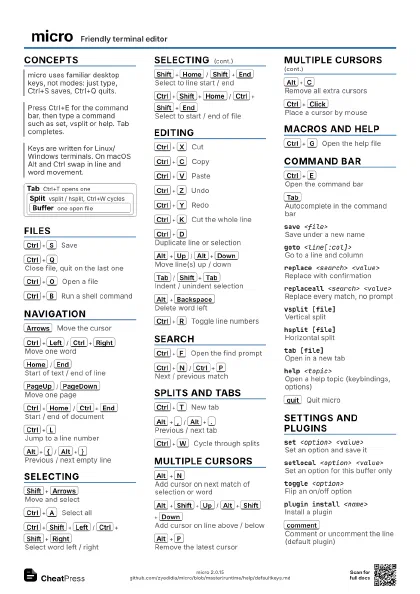
micro Friendly terminal editor
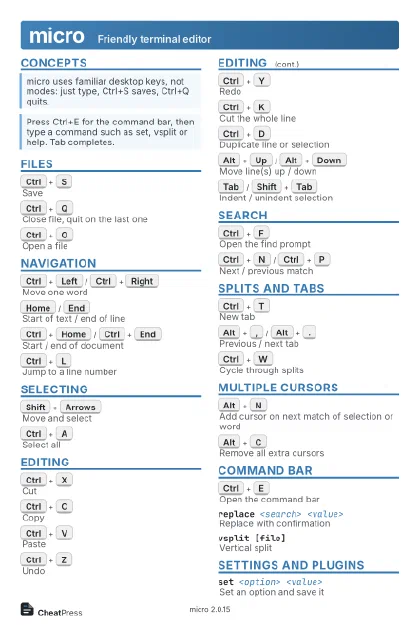 Light · Postcard
102 × 152 mm · PDF
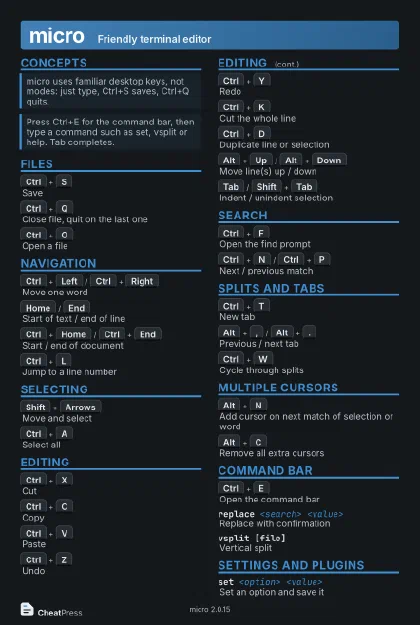 Dark · Postcard
102 × 152 mm · PDF
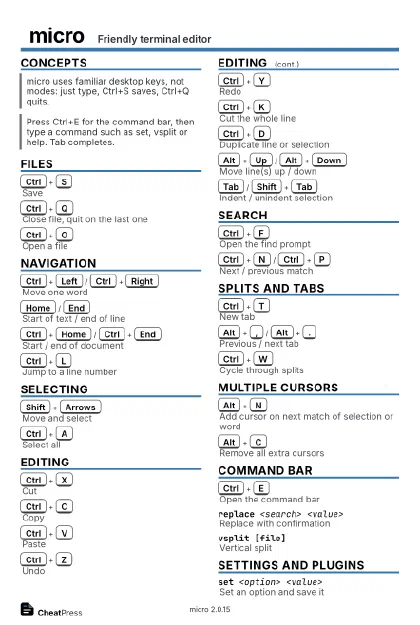 Ink saver · Postcard
102 × 152 mm · PDF
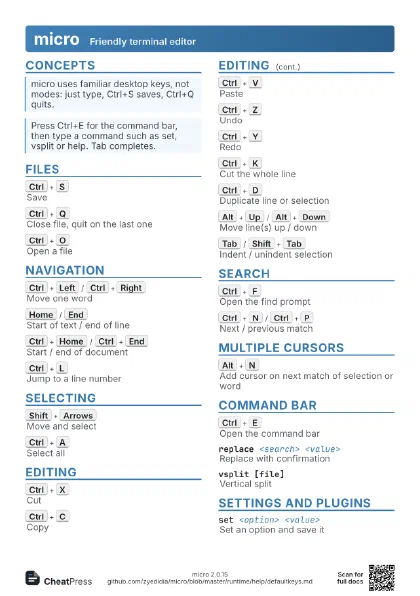
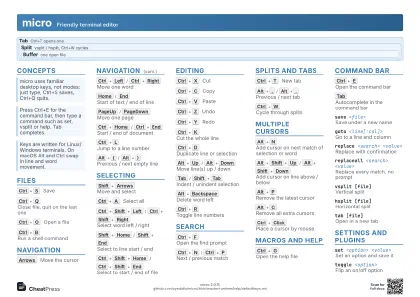 Light · A4 landscape
297 × 210 mm · PDF
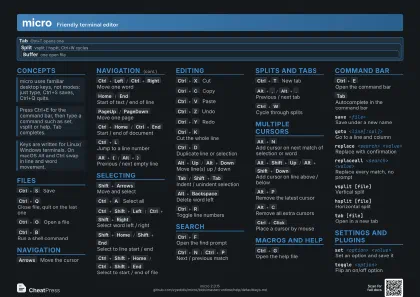 Dark · A4 landscape
297 × 210 mm · PDF
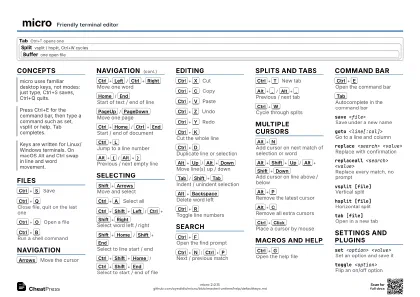 Ink saver · A4 landscape
297 × 210 mm · PDF
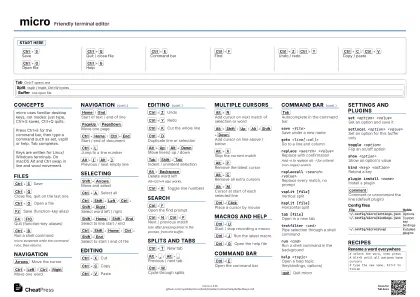
 Light · A3 landscape
420 × 297 mm · PDF
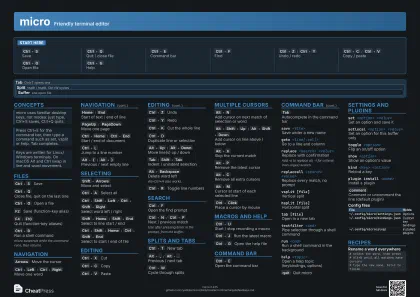 Dark · A3 landscape
420 × 297 mm · PDF
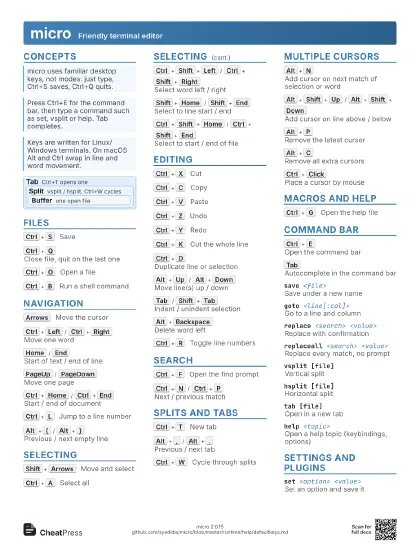
 Ink saver · A3 landscape
420 × 297 mm · PDF
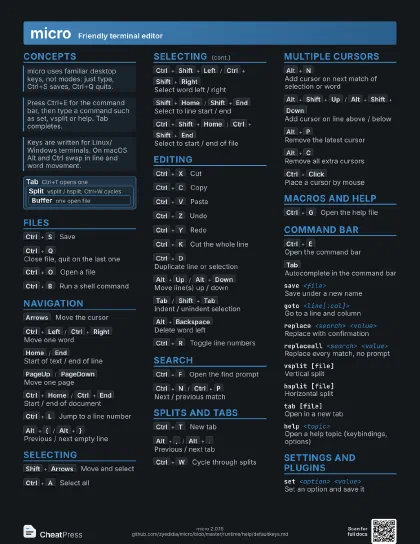
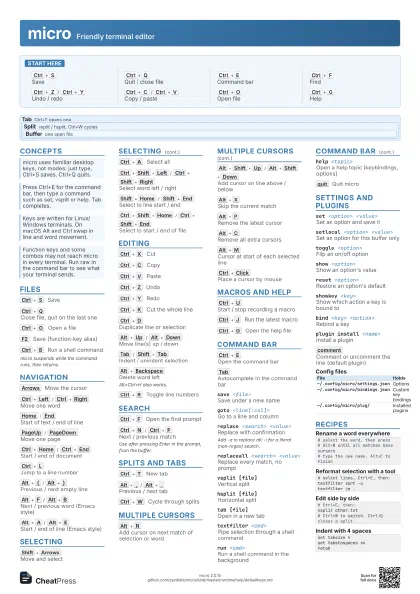
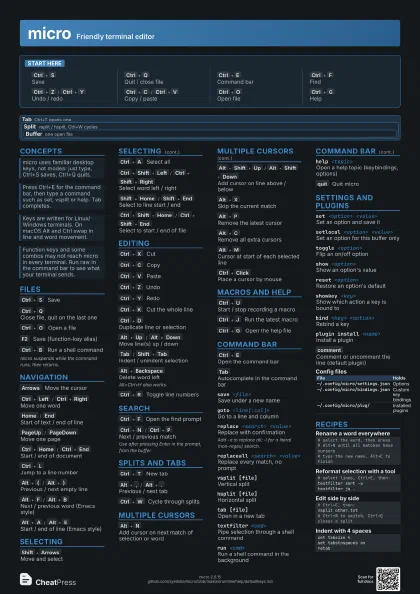
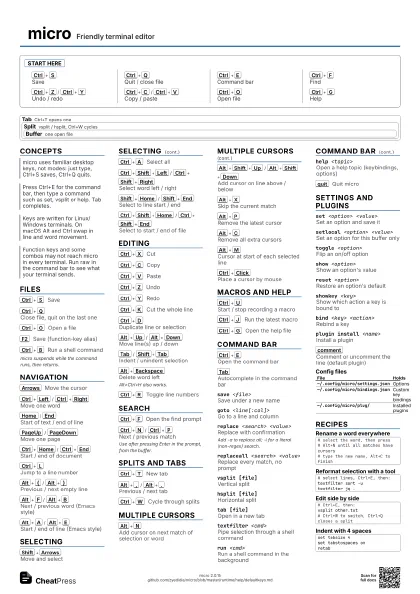
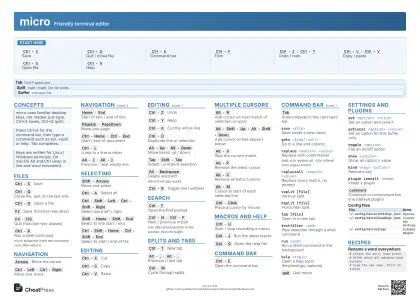
Start here
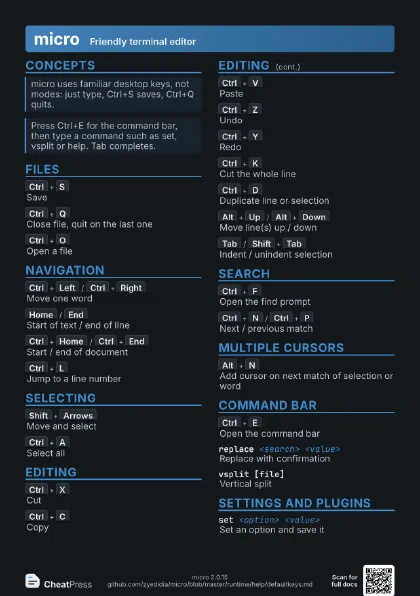
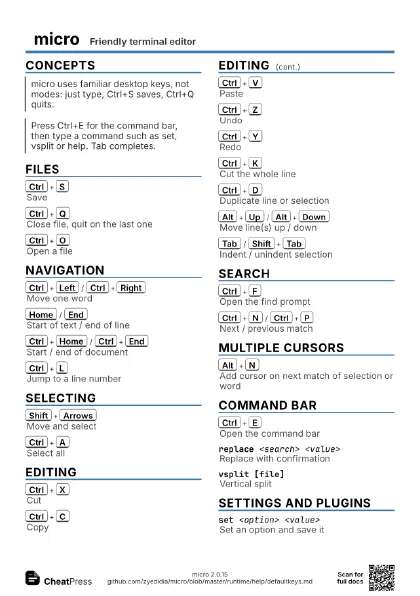
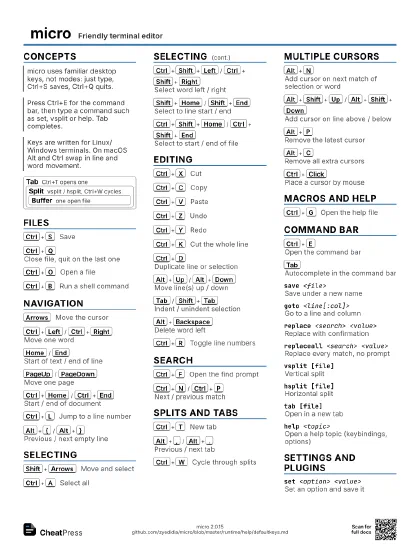
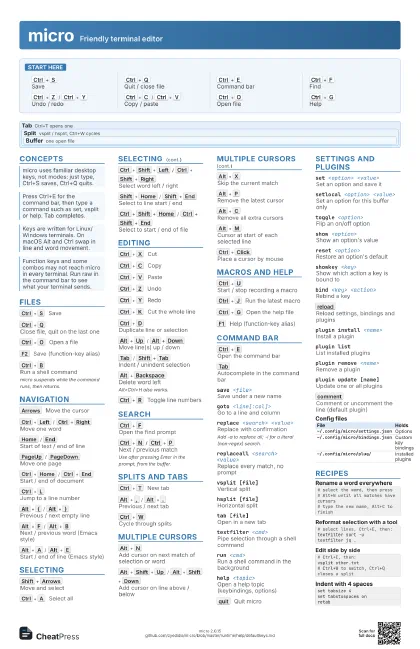
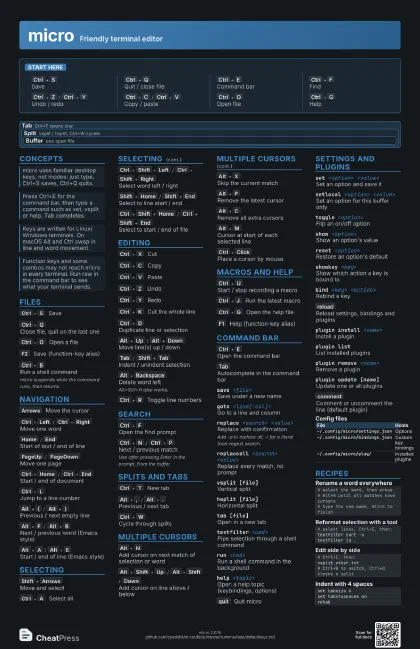
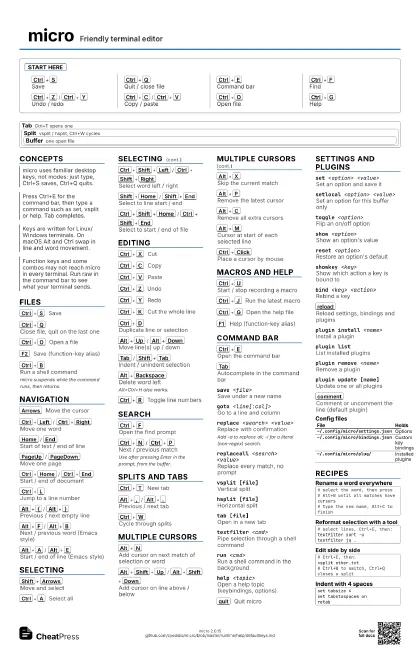
Ctrl+S
Save
Ctrl+Q
Quit / close file
Ctrl+E
Command bar
Ctrl+F
Find
Ctrl+Z
/
Ctrl+Y
Undo / redo
Ctrl+C
/
Ctrl+V
Copy / paste
Ctrl+O
Open file
Ctrl+G
Help
Concepts
Tab Ctrl+T opens one
Split
vsplit / hsplit, Ctrl+W cycles
Buffer one open file
Files
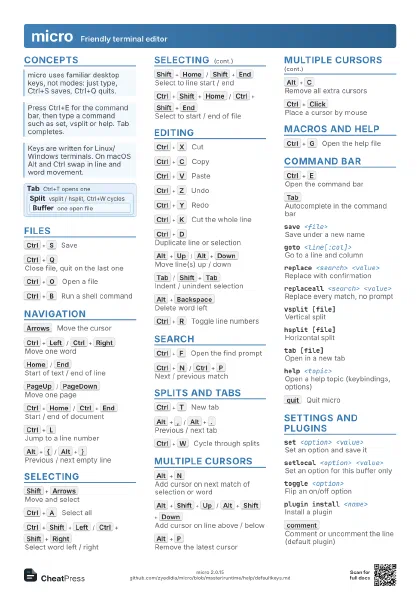
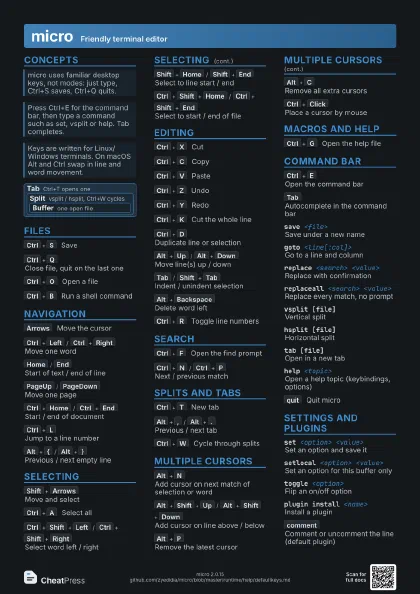
Ctrl+S
Save
Ctrl+Q
Close file, quit on the last one
Ctrl+O
Open a file
F2
Save (function-key alias)
F4
/
F10
Quit (function-key aliases)
Ctrl+B
Run a shell command
micro suspends while the command runs, then returns.
Navigation
Arrows
Move the cursor
Ctrl+Left
/
Ctrl+Right
Move one word
Home
/
End
Start of text / end of line
PageUp
/
PageDown
Move one page
Ctrl+Home
/
Ctrl+End
Start / end of document
Ctrl+L
Jump to a line number
Alt+{
/
Alt+}
Previous / next empty line
Alt+F
/
Alt+B
Next / previous word (Emacs style)
Alt+A
/
Alt+E
Start / end of line (Emacs style)
Selecting
Shift+Arrows
Move and select
Ctrl+A
Select all
Ctrl+Shift+Left
/
Ctrl+Shift+Right
Select word left / right
Shift+Home
/
Shift+End
Select to line start / end
Ctrl+Shift+Home
/
Ctrl+Shift+End
Select to start / end of file
Editing
Ctrl+X
Cut
Ctrl+C
Copy
Ctrl+V
Paste
Ctrl+Z
Undo
Ctrl+Y
Redo
Ctrl+K
Cut the whole line
Ctrl+D
Duplicate line or selection
Alt+Up
/
Alt+Down
Move line(s) up / down
Tab
/
Shift+Tab
Indent / unindent selection
Alt+Backspace
Delete word left
Alt+Ctrl+H also works.
Ctrl+H
Backspace on old terminals
Ctrl+R
Toggle line numbers
Search
Ctrl+F
Open the find prompt
Ctrl+N
/
Ctrl+P
Next / previous match
Use after pressing Enter in the prompt, from the buffer.
F3
/
F7
Find (function-key aliases)
Splits and tabs
Ctrl+T
New tab
Alt+,
/
Alt+.
Previous / next tab
Ctrl+W
Cycle through splits
Multiple cursors
Alt+N
Add cursor on next match of selection or word
Alt+Shift+Up
/
Alt+Shift+Down
Add cursor on line above / below
Alt+X
Skip the current match
Alt+P
Remove the latest cursor
Alt+C
Remove all extra cursors
Alt+M
Cursor at start of each selected line
Ctrl+Click
Place a cursor by mouse
Macros and help
Ctrl+U
Start / stop recording a macro
Ctrl+J
Run the latest macro
Ctrl+G
Open the help file
F1
Help (function-key alias)
Command bar
Ctrl+E
Open the command bar
Tab
Autocomplete in the command bar
save <file>
Save under a new name
goto <line[:col]>
Go to a line and column
replace <search> <value>
Replace with confirmation
Add -a to replace all; -l for a literal (non-regex) search.
replaceall <search> <value>
Replace every match, no prompt
vsplit [file]Vertical split
hsplit [file]Horizontal split
tab [file]Open in a new tab
textfilter <cmd>
Pipe selection through a shell command
run <cmd>Run a shell command in the background
help <topic>
Open a help topic (keybindings, options)
quit
Quit micro
Settings and plugins
set <option> <value>
Set an option and save it
setlocal <option> <value>
Set an option for this buffer only
toggle <option>
Flip an on/off option
show <option>
Show an option's value
reset <option>
Restore an option's default
showkey <key>
Show which action a key is bound to
bind <key> <action>
Rebind a key
reload
Reload settings, bindings and plugins
plugin install <name>
Install a plugin
plugin listList installed plugins
plugin remove <name>
Remove a plugin
plugin update [name]
Update one or all plugins
comment
Comment or uncomment the line (default plugin)
lint
Check the file for errors (default plugin)
| File | Holds |
|---|---|
~/.config/micro/settings.json |
Options |
~/.config/micro/bindings.json |
Custom key bindings |
~/.config/micro/plug/ |
Installed plugins |
Recipes
# select the word, then press# Alt+N until all matches have cursors# type the new name, Alt+C to finish# select lines, Ctrl+E, then:textfilter sort -utextfilter jq .# Ctrl+E, then:vsplit other.txt# Ctrl+W to switch, Ctrl+Q closes a splitset tabsize 4set tabstospaces onretab