Cheat
Jupyter Notebook Notebook shortcuts
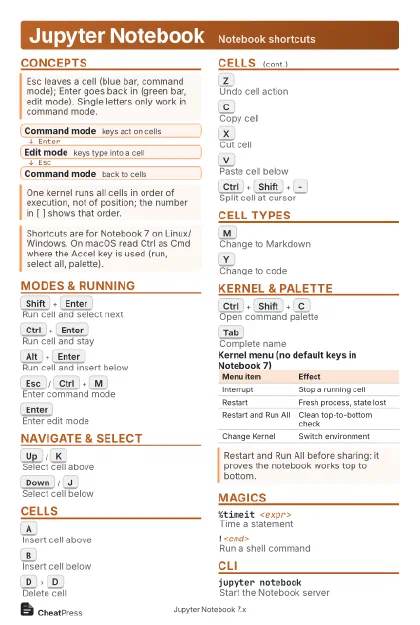 Light · Postcard
102 × 152 mm · PDF
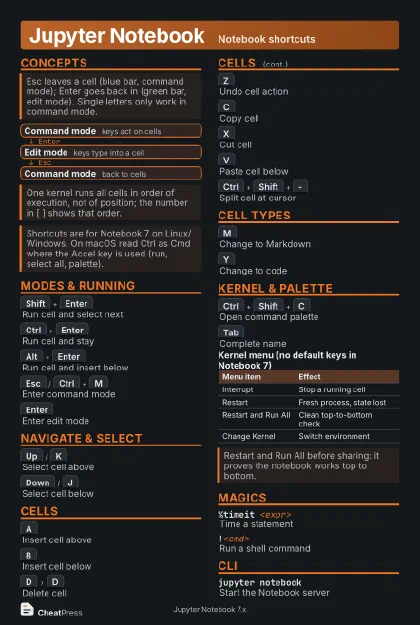 Dark · Postcard
102 × 152 mm · PDF
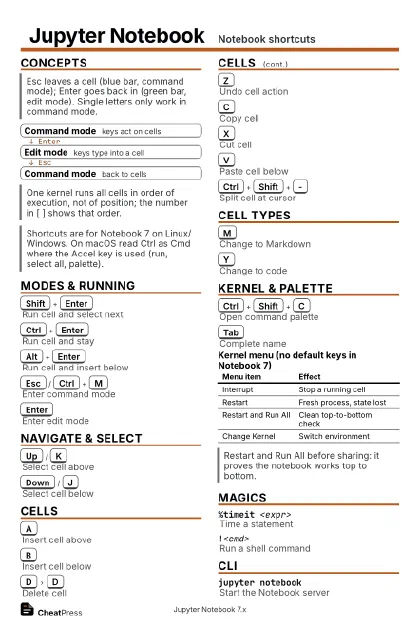 Ink saver · Postcard
102 × 152 mm · PDF
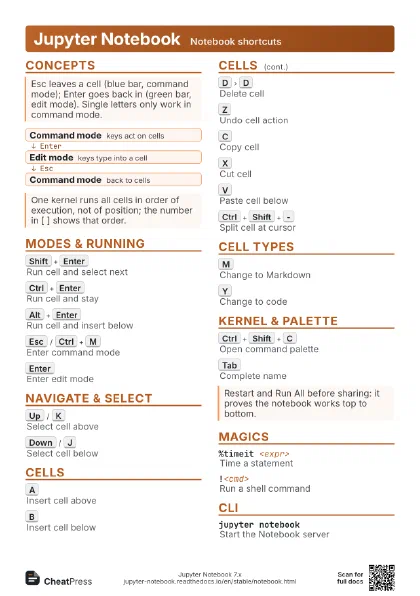
 Light · A4 landscape
297 × 210 mm · PDF
 Dark · A4 landscape
297 × 210 mm · PDF
 Ink saver · A4 landscape
297 × 210 mm · PDF
 Light · A3 landscape
420 × 297 mm · PDF
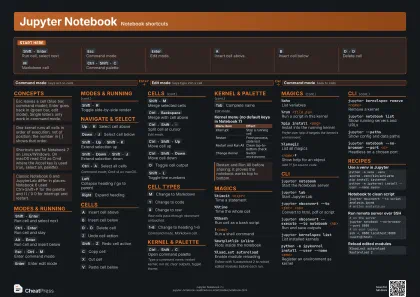 Dark · A3 landscape
420 × 297 mm · PDF
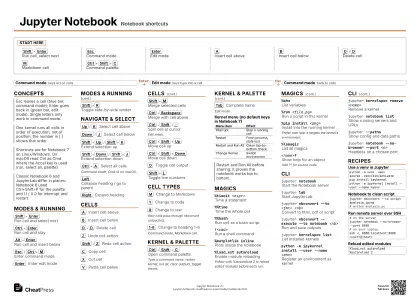 Ink saver · A3 landscape
420 × 297 mm · PDF
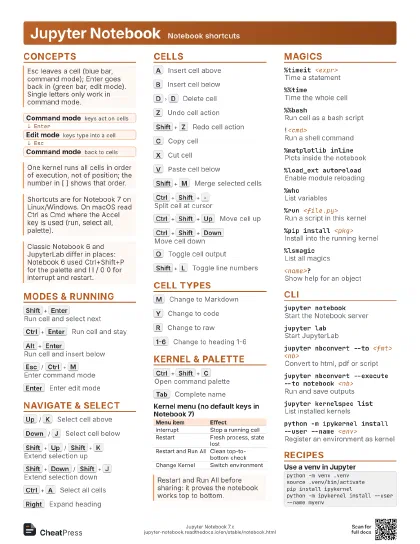
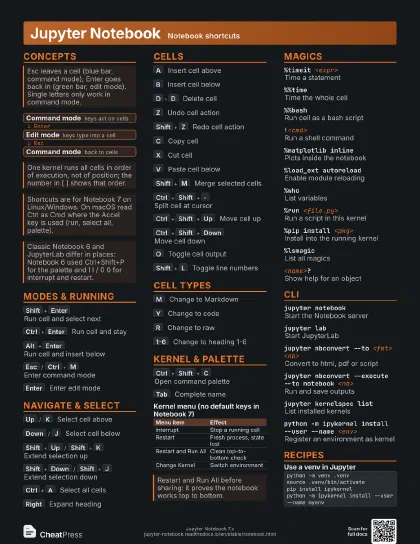
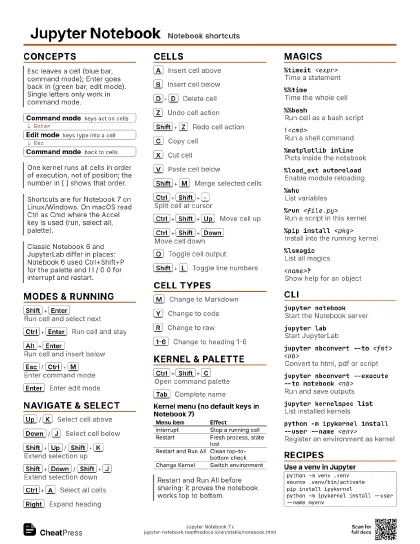
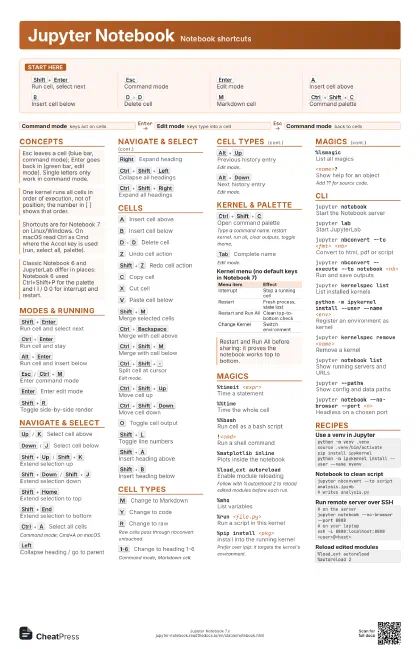
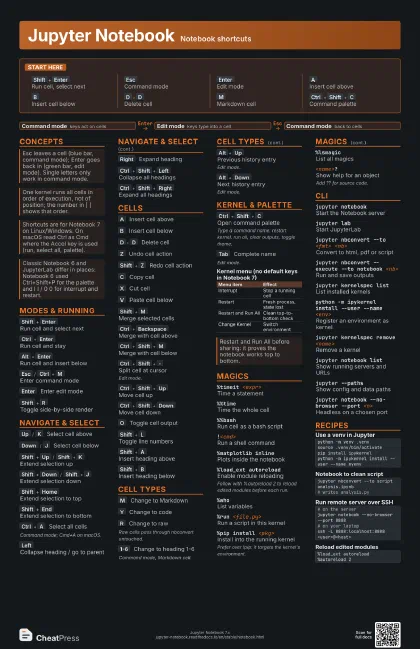
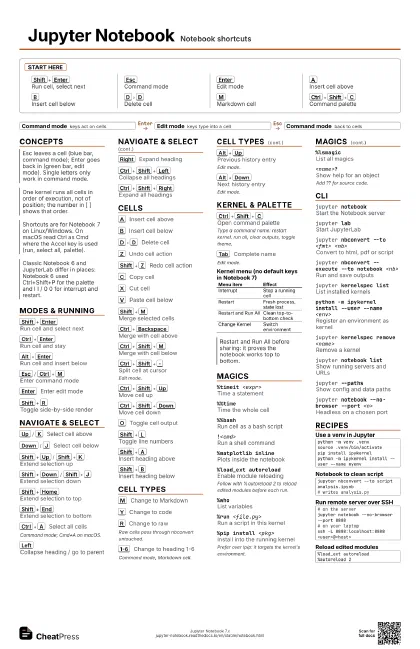
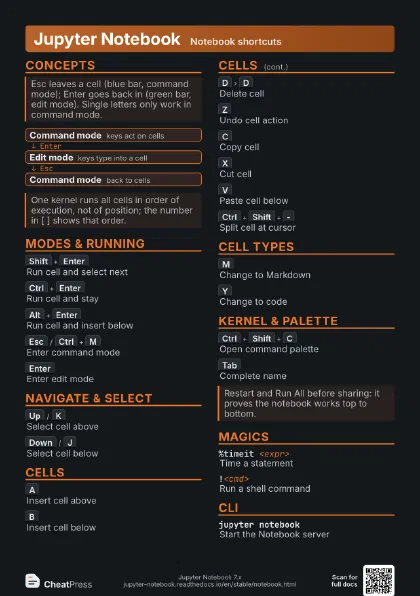
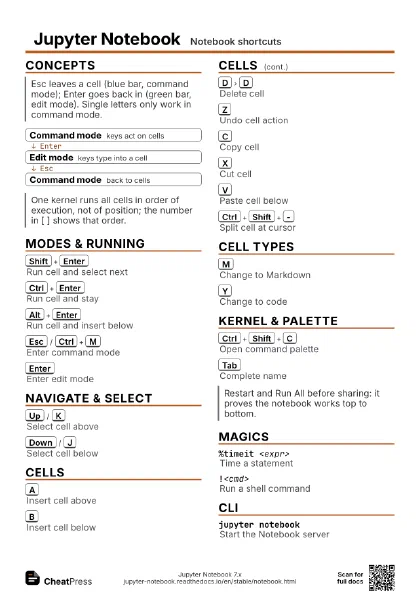
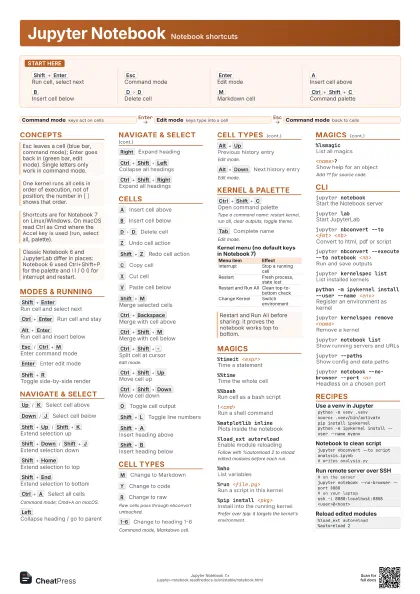
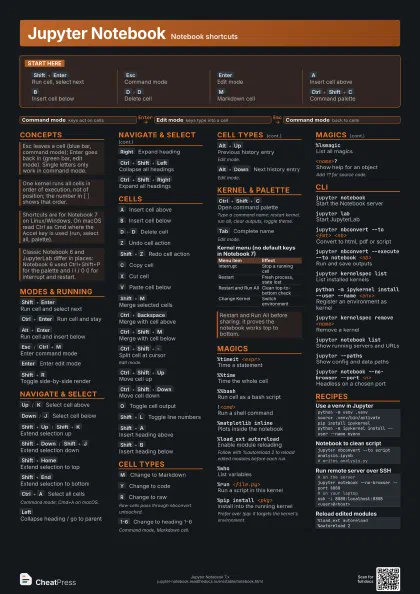
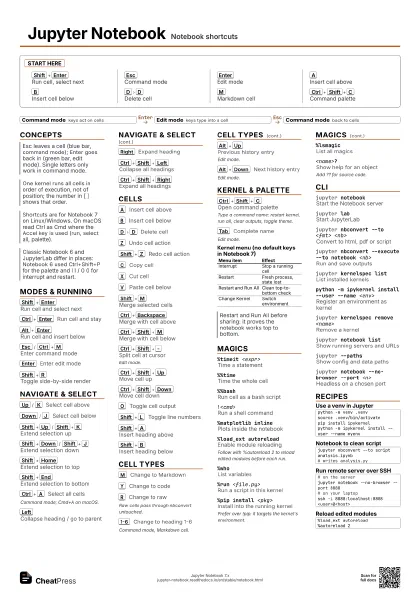
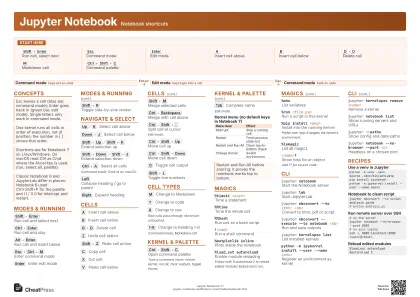
Start here
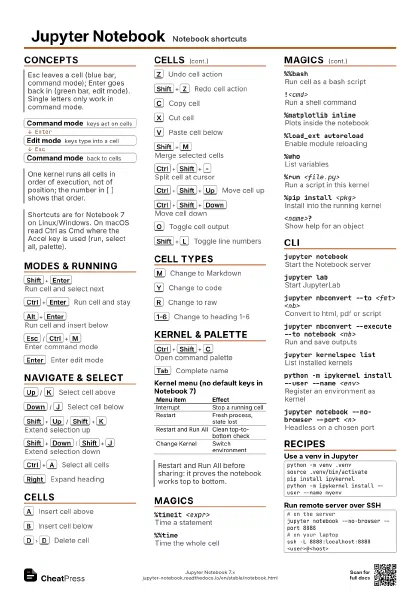
Shift+Enter
Run cell, select next
Esc
Command mode
Enter
Edit mode
A
Insert cell above
B
Insert cell below
D
D
Delete cell
M
Markdown cell
Ctrl+Shift+C
Command palette
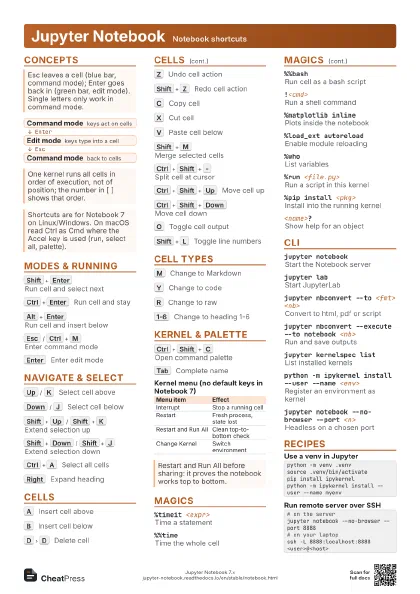
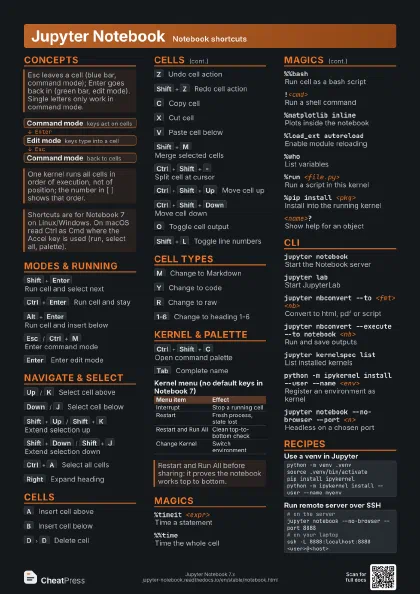
Concepts
- Command mode keys act on cells
- Edit mode keys type into a cell
- Command mode back to cells
Modes & Running
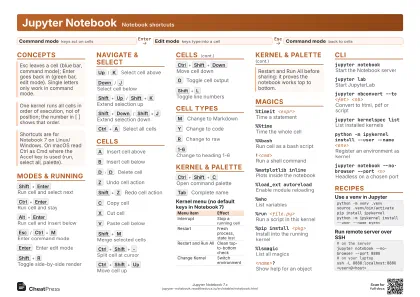
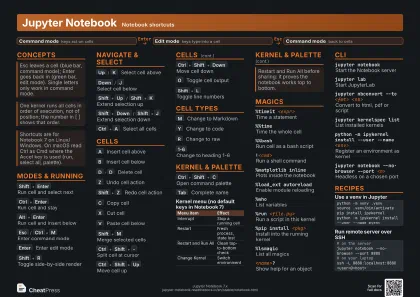
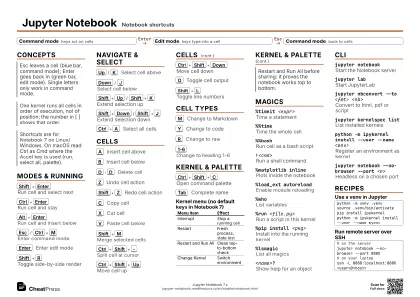
Shift+Enter
Run cell and select next
Ctrl+Enter
Run cell and stay
Alt+Enter
Run cell and insert below
Esc
/
Ctrl+M
Enter command mode
Enter
Enter edit mode
Shift+R
Toggle side-by-side render
Navigate & Select
Up
/
K
Select cell above
Down
/
J
Select cell below
Shift+Up
/
Shift+K
Extend selection up
Shift+Down
/
Shift+J
Extend selection down
Shift+Home
Extend selection to top
Shift+End
Extend selection to bottom
Ctrl+A
Select all cells
Command mode; Cmd+A on macOS.
Left
Collapse heading / go to parent
Right
Expand heading
Ctrl+Shift+Left
Collapse all headings
Ctrl+Shift+Right
Expand all headings
Cells
A
Insert cell above
B
Insert cell below
D
D
Delete cell
Z
Undo cell action
Shift+Z
Redo cell action
C
Copy cell
X
Cut cell
V
Paste cell below
Shift+M
Merge selected cells
Ctrl+Backspace
Merge with cell above
Ctrl+Shift+M
Merge with cell below
Ctrl+Shift+-
Split cell at cursor
Edit mode.
Ctrl+Shift+Up
Move cell up
Ctrl+Shift+Down
Move cell down
O
Toggle cell output
Shift+L
Toggle line numbers
Shift+A
Insert heading above
Shift+B
Insert heading below
Cell Types
M
Change to Markdown
Y
Change to code
R
Change to raw
Raw cells pass through nbconvert untouched.
1-6
Change to heading 1-6
Command mode, Markdown cell.
Alt+Up
Previous history entry
Edit mode.
Alt+Down
Next history entry
Edit mode.
Kernel & Palette
Ctrl+Shift+C
Open command palette
Type a command name: restart kernel, run all, clear outputs,
toggle theme.
Tab
Complete name
Edit mode.
| Menu item | Effect |
|---|---|
| Interrupt | Stop a running cell |
| Restart | Fresh process, state lost |
| Restart and Run All | Clean top-to-bottom check |
| Change Kernel | Switch environment |
Magics
%timeit <expr>
Time a statement
%%timeTime the whole cell
%%bashRun cell as a bash script
!<cmd>Run a shell command
%matplotlib inline
Plots inside the notebook
%load_ext autoreload
Enable module reloading
Follow with %autoreload 2 to reload edited modules before each
run.
%whoList variables
%run <file.py>
Run a script in this kernel
%pip install <pkg>
Install into the running kernel
Prefer over !pip: it targets the kernel's environment.
%lsmagicList all magics
<name>?Show help for an object
Add ?? for source code.
CLI
jupyter notebook
Start the Notebook server
jupyter labStart JupyterLab
jupyter nbconvert --to <fmt> <nb>
Convert to html, pdf or script
jupyter nbconvert --execute --to notebook <nb>
Run and save outputs
jupyter kernelspec list
List installed kernels
python -m ipykernel install --user --name <env>
Register an environment as kernel
jupyter kernelspec remove <name>
Remove a kernel
jupyter notebook list
Show running servers and URLs
jupyter --pathsShow config and data paths
jupyter notebook --no-browser --port <n>
Headless on a chosen port
Recipes
python -m venv .venvsource .venv/bin/activatepip install ipykernelpython -m ipykernel install --user --name myenvjupyter nbconvert --to script analysis.ipynb# writes analysis.py# on the serverjupyter notebook --no-browser --port 8888# on your laptopssh -L 8888:localhost:8888 <user>@<host>%load_ext autoreload%autoreload 2