Cheat
broot Tree navigator
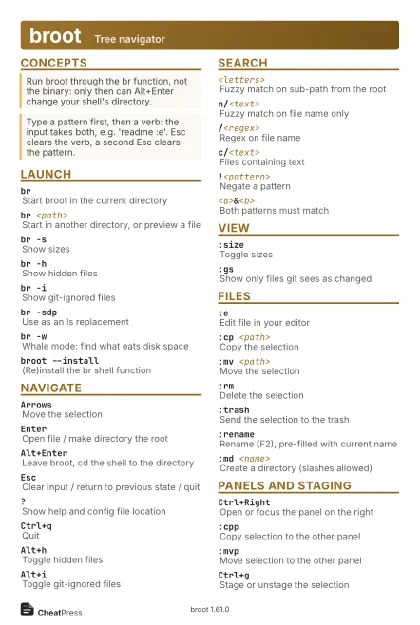 Light · Postcard
102 × 152 mm · PDF
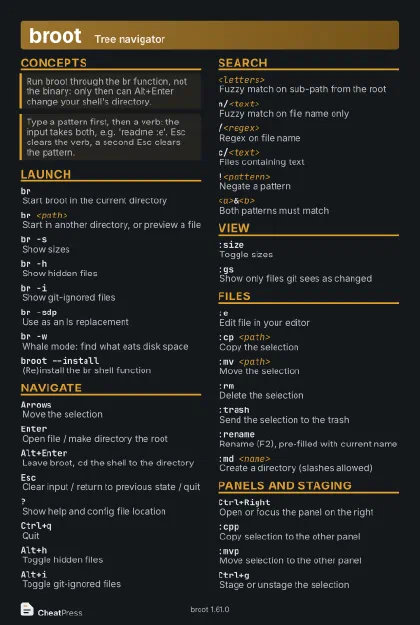 Dark · Postcard
102 × 152 mm · PDF
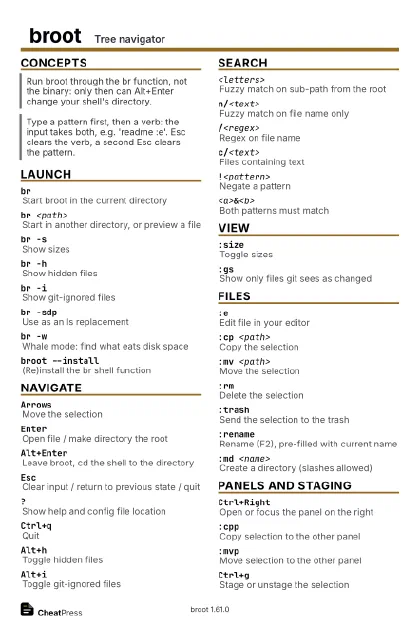 Ink saver · Postcard
102 × 152 mm · PDF
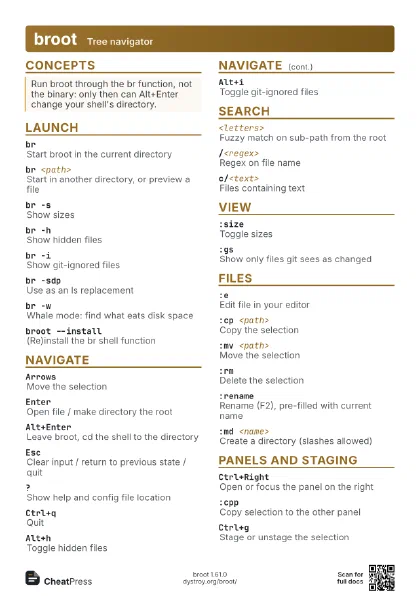
 Light · A4 landscape
297 × 210 mm · PDF
 Dark · A4 landscape
297 × 210 mm · PDF
 Ink saver · A4 landscape
297 × 210 mm · PDF
 Light · A3 landscape
420 × 297 mm · PDF
 Dark · A3 landscape
420 × 297 mm · PDF
 Ink saver · A3 landscape
420 × 297 mm · PDF
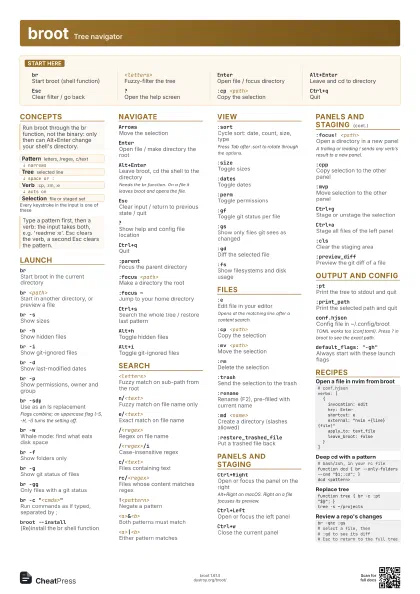
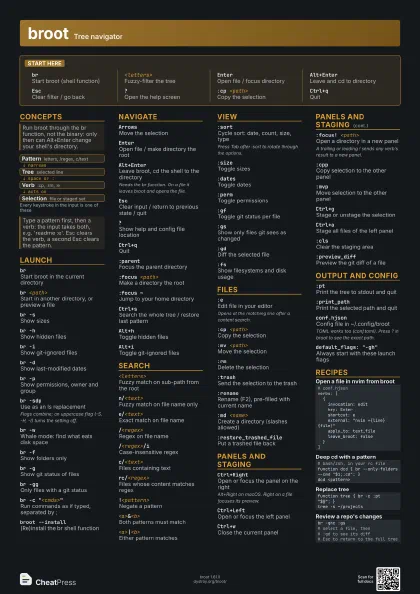
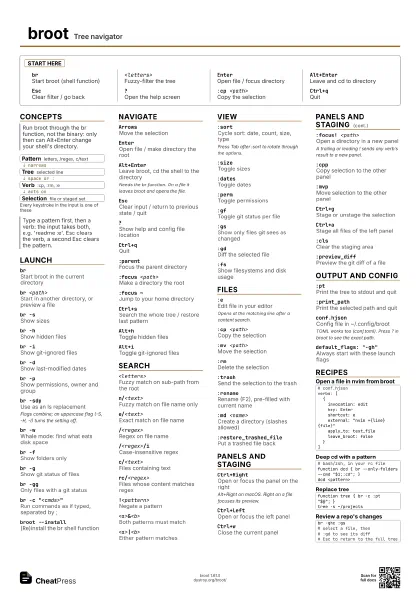
Start here
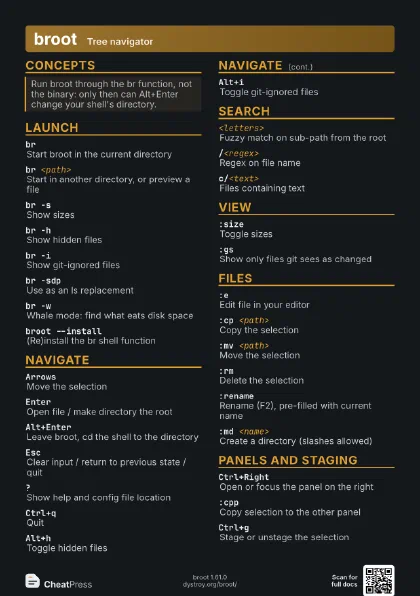
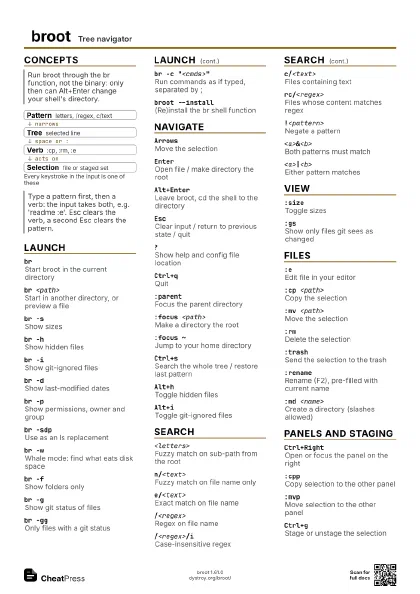
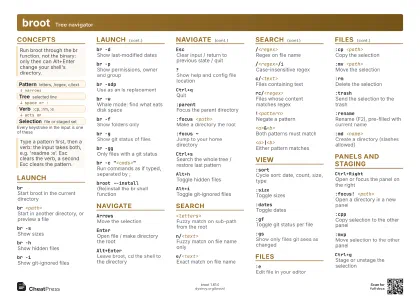
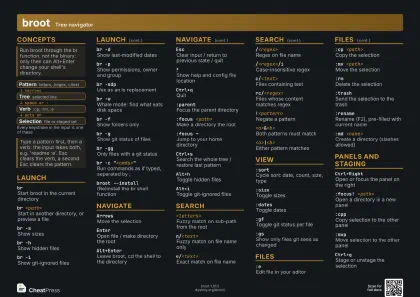
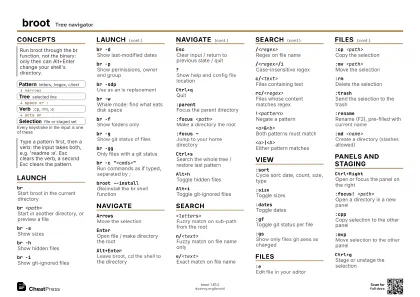
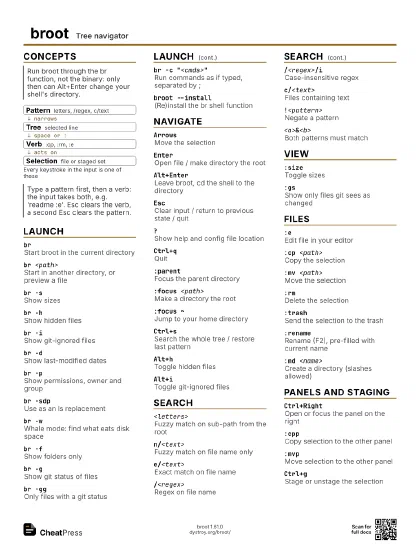
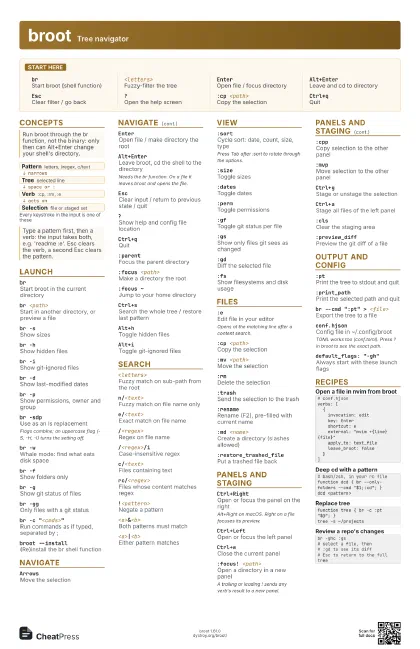
brStart broot (shell function)
<letters>Fuzzy-filter the tree
EnterOpen file / focus directory
Alt+EnterLeave and cd to directory
EscClear filter / go back
?Open the help screen
:cp <path>
Copy the selection
Ctrl+qQuit
Concepts
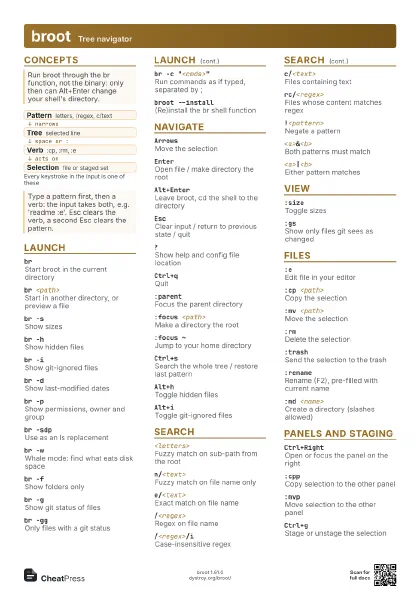
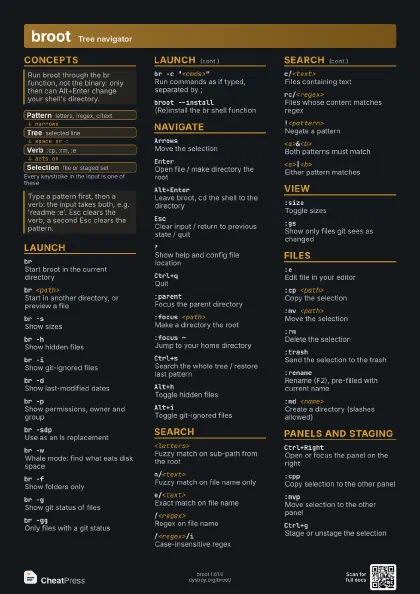
- Pattern letters, /regex, c/text
- Tree selected line
- Verb :cp, :rm, :e
- Selection file or staged set
Launch
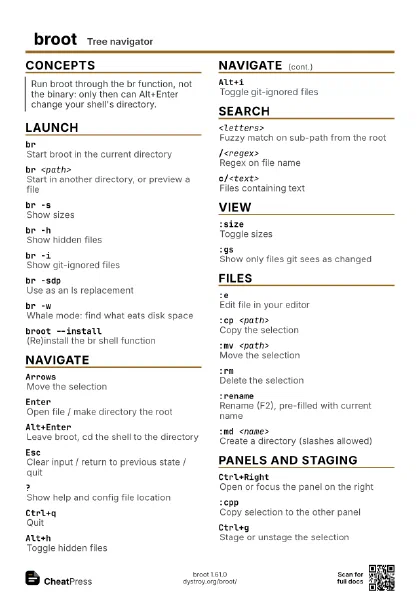
brStart broot in the current directory
br <path>
Start in another directory, or preview a file
br -sShow sizes
br -hShow hidden files
br -iShow git-ignored files
br -dShow last-modified dates
br -pShow permissions, owner and group
br -sdpUse as an ls replacement
Flags combine; an uppercase flag (-S, -H, -I) turns the
setting off.
br -wWhale mode: find what eats disk space
br -fShow folders only
br -gShow git status of files
br -ggOnly files with a git status
br -c "<cmds>"
Run commands as if typed, separated by ;
broot --install(Re)install the br shell function
Navigate
ArrowsMove the selection
EnterOpen file / make directory the root
Alt+Enter
Leave broot, cd the shell to the directory
Needs the br function. On a file it leaves broot and opens the
file.
Esc
Clear input / return to previous state / quit
?Show help and config file location
Ctrl+qQuit
:parentFocus the parent directory
:focus <path>
Make a directory the root
:focus ~Jump to your home directory
Ctrl+s
Search the whole tree / restore last pattern
Alt+hToggle hidden files
Alt+iToggle git-ignored files
Search
<letters>Fuzzy match on sub-path from the root
n/<text>Fuzzy match on file name only
e/<text>Exact match on file name
/<regex>Regex on file name
/<regex>/i
Case-insensitive regex
c/<text>Files containing text
rc/<regex>
Files whose content matches regex
!<pattern>
Negate a pattern
<a>&<b>
Both patterns must match
<a>|<b>
Either pattern matches
View
:sortCycle sort: date, count, size, type
Press Tab after :sort to rotate through the options.
:sizeToggle sizes
:datesToggle dates
:permToggle permissions
:gfToggle git status per file
:gsShow only files git sees as changed
:gdDiff the selected file
:fsShow filesystems and disk usage
Files
:eEdit file in your editor
Opens at the matching line after a content search.
:cp <path>
Copy the selection
:mv <path>
Move the selection
:rmDelete the selection
:trashSend the selection to the trash
:rename
Rename (F2), pre-filled with current name
:md <name>
Create a directory (slashes allowed)
:restore_trashed_file
Put a trashed file back
Panels and staging
Ctrl+RightOpen or focus the panel on the right
Alt+Right on macOS. Right on a file focuses its preview.
Ctrl+LeftOpen or focus the left panel
Ctrl+wClose the current panel
:focus! <path>
Open a directory in a new panel
A trailing or leading ! sends any verb's result to a new
panel.
:cppCopy selection to the other panel
:mvpMove selection to the other panel
Ctrl+gStage or unstage the selection
Ctrl+aStage all files of the left panel
:clsClear the staging area
:preview_diffPreview the git diff of a file
Output and config
:ptPrint the tree to stdout and quit
:print_pathPrint the selected path and quit
br --cmd ":pt" > <file>
Export the tree to a file
conf.hjsonConfig file in ~/.config/broot
TOML works too (conf.toml). Press ? in broot to see the exact
path.
default_flags: "-gh"
Always start with these launch flags
Recipes
# conf.hjsonverbs: [ { invocation: edit key: Enter shortcut: e external: "nvim +{line} {file}" apply_to: text_file leave_broot: false }]# bash/zsh, in your rc filefunction dcd { br --only-folders --cmd "$1;:cd"; }dcd <pattern>function tree { br -c :pt "$@"; }tree -s ~/projectsbr -ghc :gs# select a file, then# :gd to see its diff# Esc to return to the full tree